Excire Blog
The Best Photo-Organizing Software in 2026 (for Mac and Windows)
If you’re struggling to organize your photo library—so that every file is categorized, tagged, rated, and easily retrievable—then I understand your pain.
I’ve been a passionate photographer for the last 16 years. When you consider my love of shorebird photography (which involves the liberal use of my camera’s burst mode), macro photography (which requires a lot of trial and error), and landscape & cityscape photography (where I frequently bracket and focus stack, often at the same time), you’ll be unsurprised to learn that I’ve produced a mountain of images.
(My current file count is 1,254,836, and that’s not including a few old hard drives I have yet to connect to my computer.)
But while I love taking photos, I’m terrible at managing them. Applying keywords, adding files to collections, culling my photoshoots, and deleting duplicates is frustratingly tedious, not to mention time-consuming. And after a long day at work or in the field, I rarely have the energy to sit down and slowly go through my files, even if I can find the time. (I often can’t.)
That’s where class-leading photo-organization programs come to the rescue. The best image-management software simplifies the organization process by offering intuitive, fast, and streamlined solutions (often with help from state-of-the-art AI models). These top photo organizers are designed for photographers who need to get their images under control and want more functionality than a desktop file manager. They’re what I regularly use to wrangle my million-plus photos into a well-organized, highly accessible catalog. And I’m betting they can do the same for you, whether you’re a professional shooter, a hobbyist, or a casual photographer.
Over the last several years, I’ve tested close to 20 image-management programs—some out of personal interest, others as part of my work as a photography educator. Out of the photo organizers I’ve tested, only a handful have stood out. This is for various reasons: innovative cataloging solutions, intuitive tools, AI-powered search, automatic keywording, sleek interfaces, budget-friendly prices, and more.
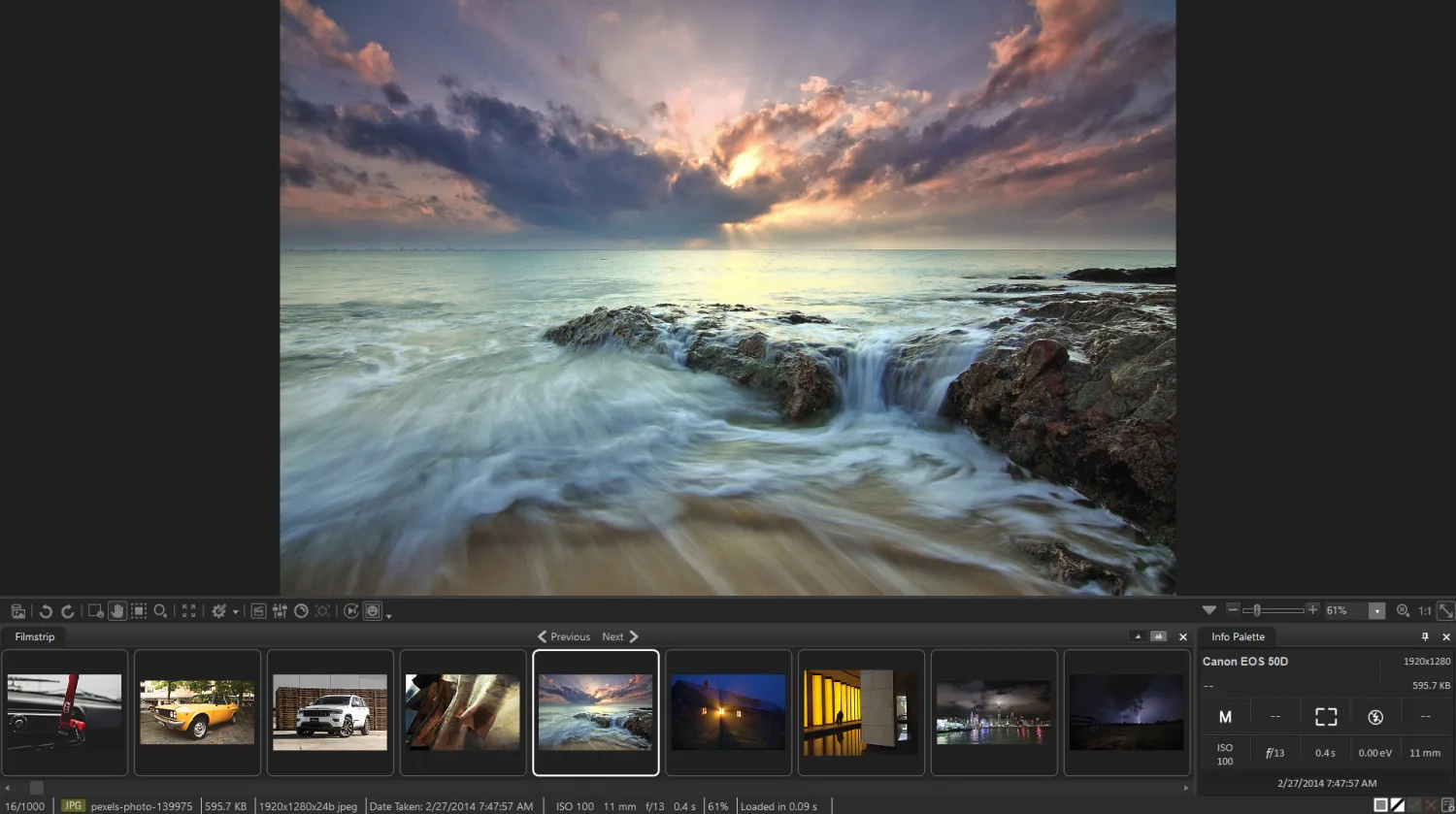
But they all have one thing in common: For the right photographer, each of my recommended organizers can save time while also ensuring an efficient, effective workflow. So which photo-management software should you use to organize your photos? Here are my top choices, starting with:
1. Excire Foto 2027: The Best Dedicated Photo-Management Program
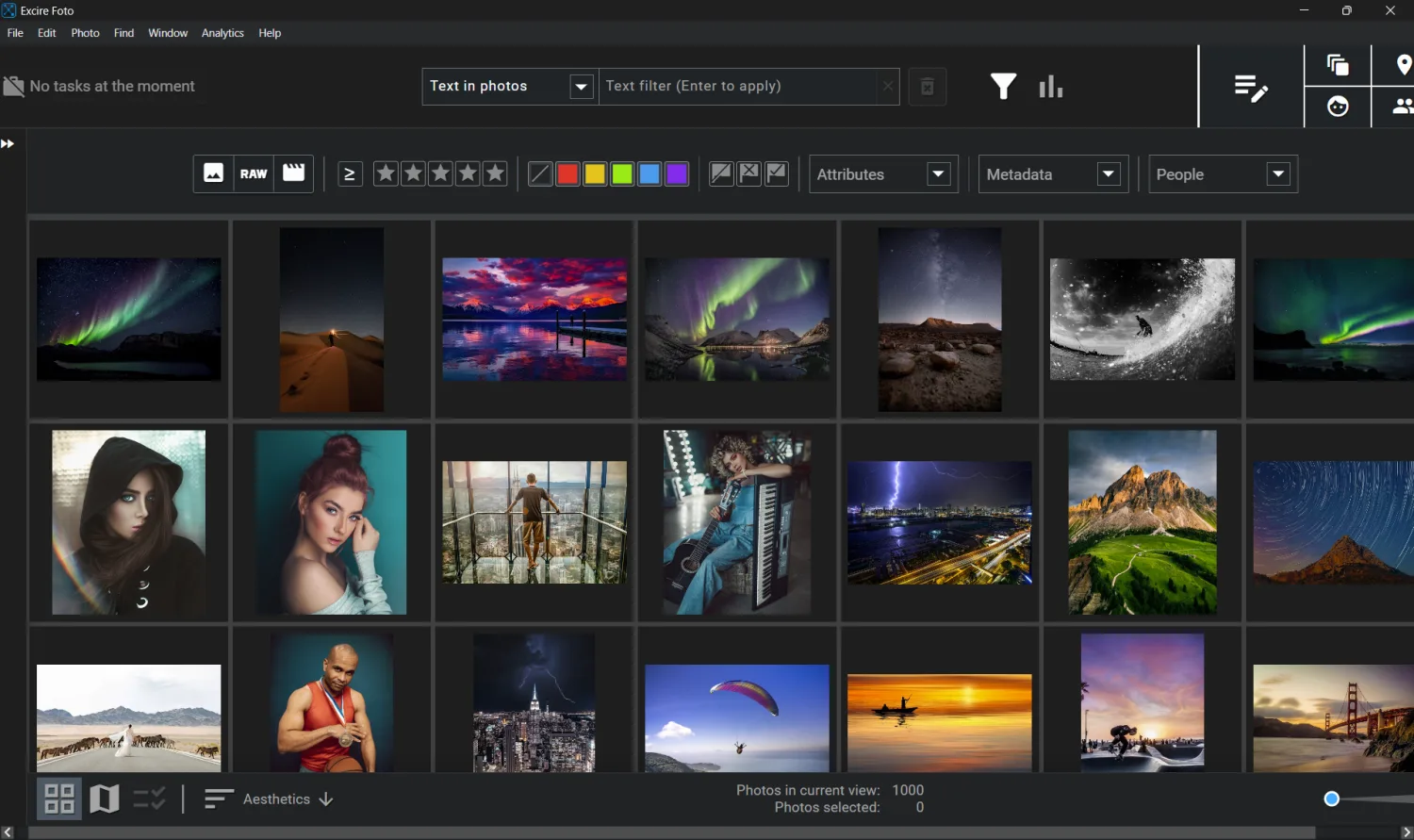
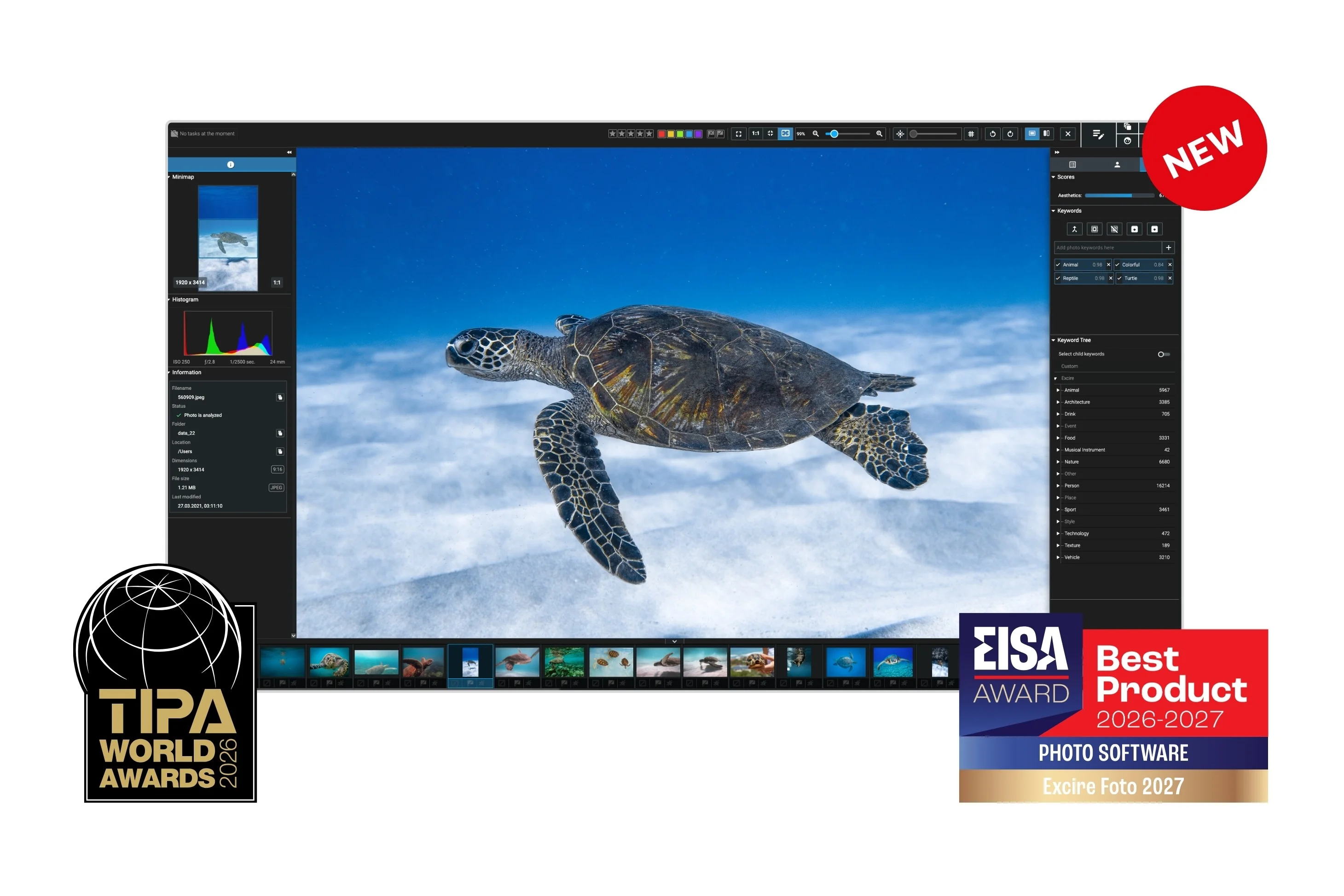
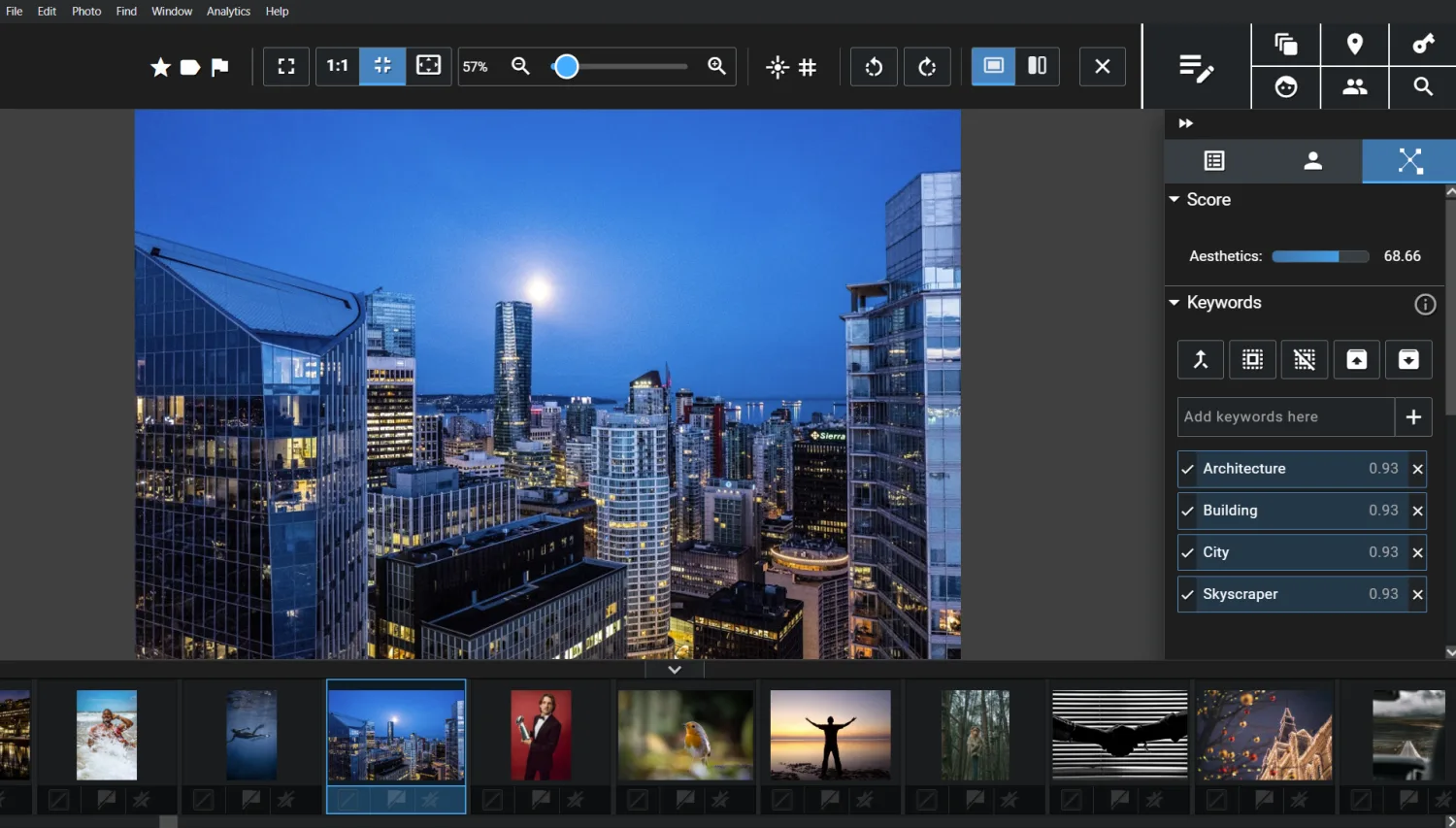
Excire Foto 2027 packs an array of AI-powered photo-organization tools that’ll make your life a whole lot easier, plus it’s fast and intuitive to use. That’s why I’ve consistently ranked Excire Foto as the best image organizer for photographers. And it’s why I think that the latest version, Excire Foto 2027, deserves praise for packing additional time-saving tools into an already outstanding package. Also, despite its use of AI, Excire runs locally on your computer and never sends your files to the cloud.
These days, AI software is (understandably) criticized, but Excire is the real deal. Driven by a personal interest in photography, the company founders began developing Excire software over 10 years ago and has steadily built a comprehensive image manager that includes specialized AI tools for searching, organizing, browsing, and culling even the largest catalogs.
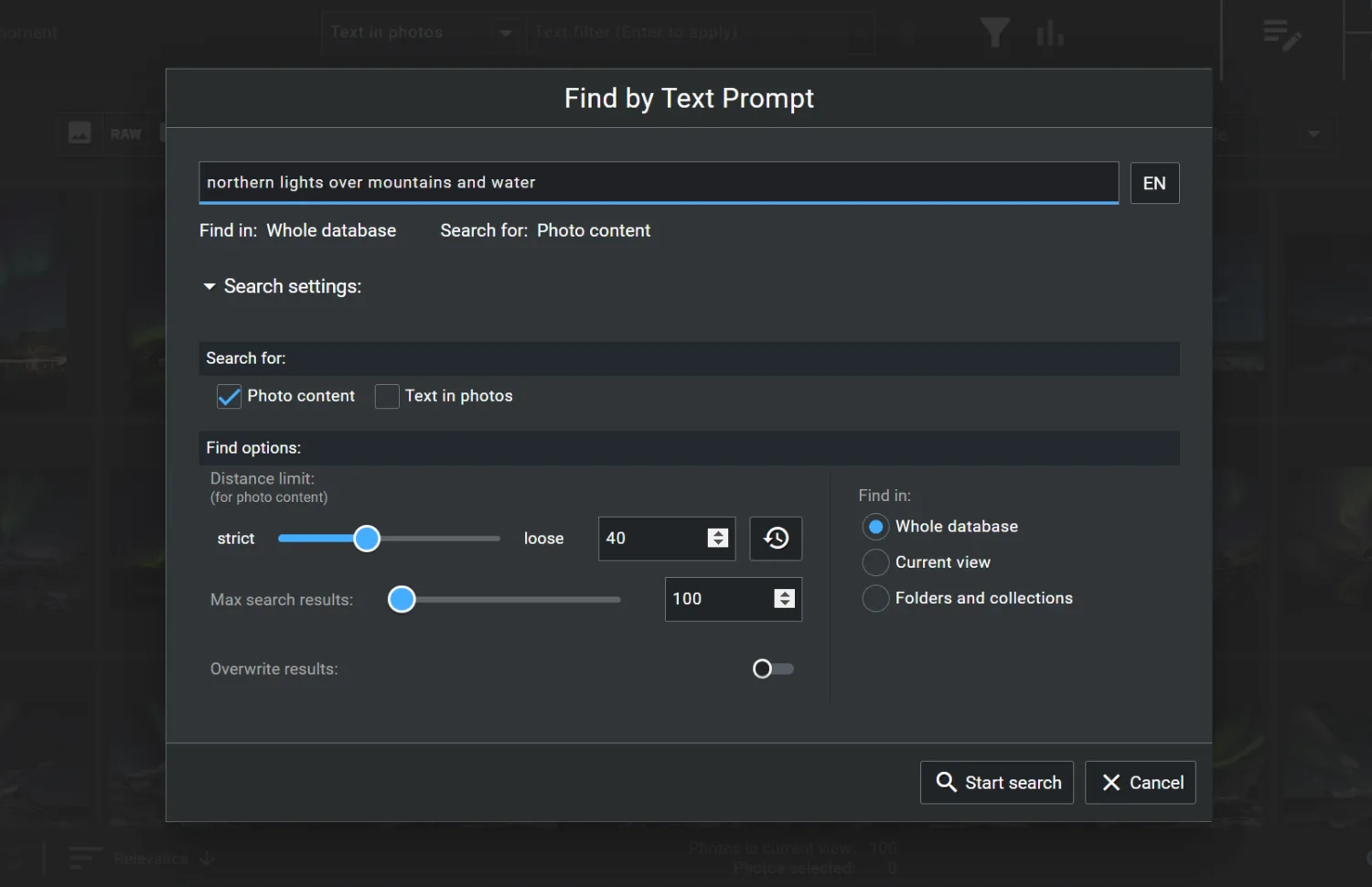
When I first tried Excire’s software, I used Excire Foto 2024, where the duplicate search, automatic AI keywording, natural-language prompt search, and powerful facial-recognition tools helped me get my image catalog organized and searchable. Excire Foto 2025 was even better, thanks in part to the AI-assisted culling module, which remains to this day the most flexible AI culling tool I’ve ever used (and I’ve used a lot of them!).
But Excire Foto 2027 is better still; not only does it include all the tools that made the previous versions so great, but the new Smart filters let me access specific types of images even as I browse through different corners of my catalog. For instance, if I want to see all my architectural images from a recent trip to Chicago, I can type “building exterior” into the Smart filter bar and see the corresponding files—even as I click on folders containing photos from different days of the trip.
The Map View is also nice, especially for photographers who do a lot of shooting while traveling, since it lets you browse through your images based on location. And the visible-text search tool uses optical character recognition (OCR) to find photos based on the text they contain, which can definitely come in handy when looking for photos of specific buildings, products, or even athletes.
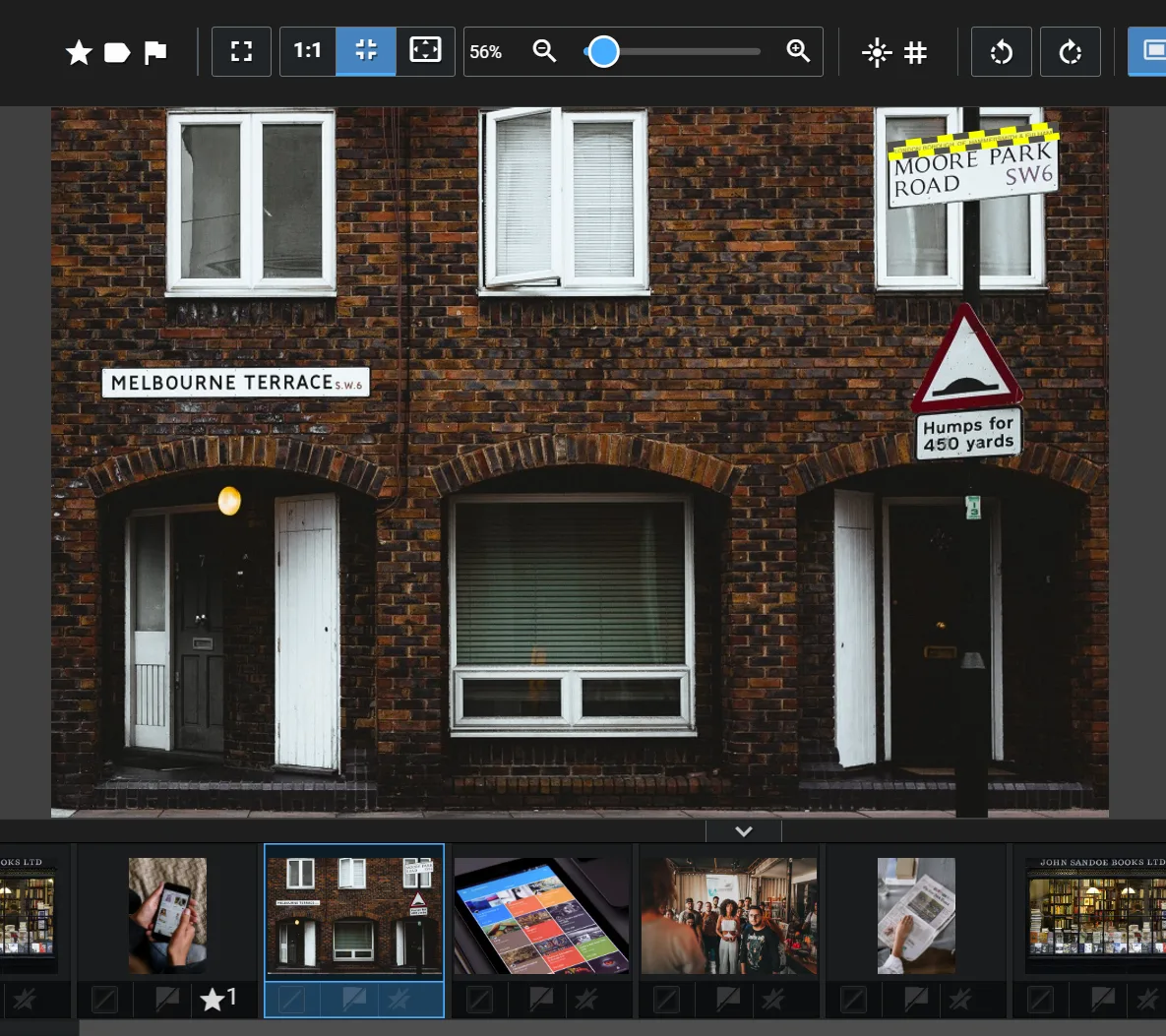
Of course, the program also includes all the image-organizer essentials, including star ratings, color labels, flagging, and metadata filtering, so if you’ve used other photo-management programs, the basic workflow will already feel familiar.
The biggest downside to Excire Foto 2027 is the lack of built-in editing capabilities, but the program can be easily integrated with your favorite post-processing program. I’ve had no trouble using Excire Foto alongside Skylum Luminar Neo or Adobe Photoshop, and going back and forth between Excire and Lightroom is similarly simple (though dedicated Lightroom Classic users should also consider Excire’s excellent LrC plugin, Excire Search 2026; see the section on Lightroom Classic below!).
Bottom line: If you need an insanely powerful image manager that’ll make your life a whole lot easier, then you can’t go wrong with Excire Foto 2027. And since Excire doesn’t use a subscription model, you pay once for a license and can keep the software forever. (There’s also a 14-day free trial, which lets you test out the program’s features to see if it’s the right fit.)
2. Adobe Lightroom Classic (With Excire Search 2026): The Best Adobe Image Organizer
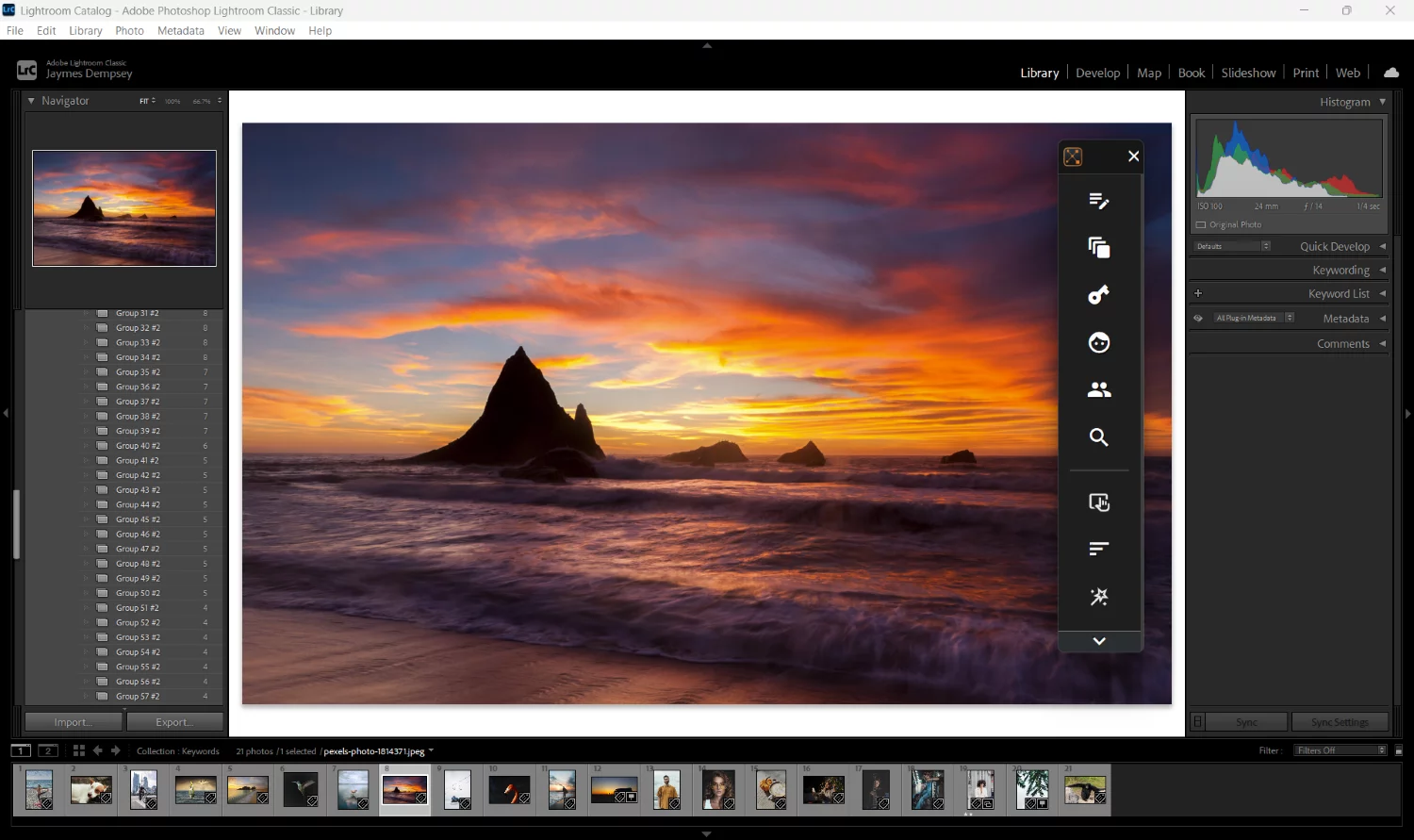
No list of image-management software would be complete without Adobe Lightroom Classic, the editor/organizer that practically every photographer has heard of. And there’s a lot to love about Lightroom Classic’s DAM features: the ratings, labels, and flags, the ability to create Collections and Smart Collections as required, not to mention the ability to organize and edit files without ever leaving the program.
As a long-time Lightroom Classic user—it was the first photo-management program I ever bought, way back when it was a non-subscription software called Lightroom 3—I appreciate the software’s benefits, but I’m also well aware of its drawbacks. The interface feels outdated, plus database management operations are annoyingly slow. Once you have a large catalog of images, simply switching between Collections goes at a snail’s pace; my 1,000,000+ images take forever to sift through, which is why I now lean heavily on Excire Foto 2027 for search and organization and using Lightroom Classic chiefly for editing.
More importantly, despite Adobe’s huge market share, the program lacks the AI-powered features offered by other options on this list (chiefly Excire Foto 2027, above, but also ON1 Photo RAW and ACDSee Photo Studio Ultimate, discussed below). And while Adobe seems intent on developing AI editing features, the company has only released two AI photo-management features in the last decade: facial recognition, which I’ve rejected several times due to its frustrating inconsistency, and AI-assisted culling, which performed badly in my recent test against Excire.
Fortunately, if you want time-saving AI features in Lightroom Classic, there is a workaround: in addition to Foto 2027, Excire offers Search 2026, a Lightroom Classic plugin. Excire Search 2026 integrates seamlessly with Lightroom Classic thanks to its Search Panel, so you can access Lightroom’s popular editing tools and Excire’s cutting-edge image-management features in an instant.
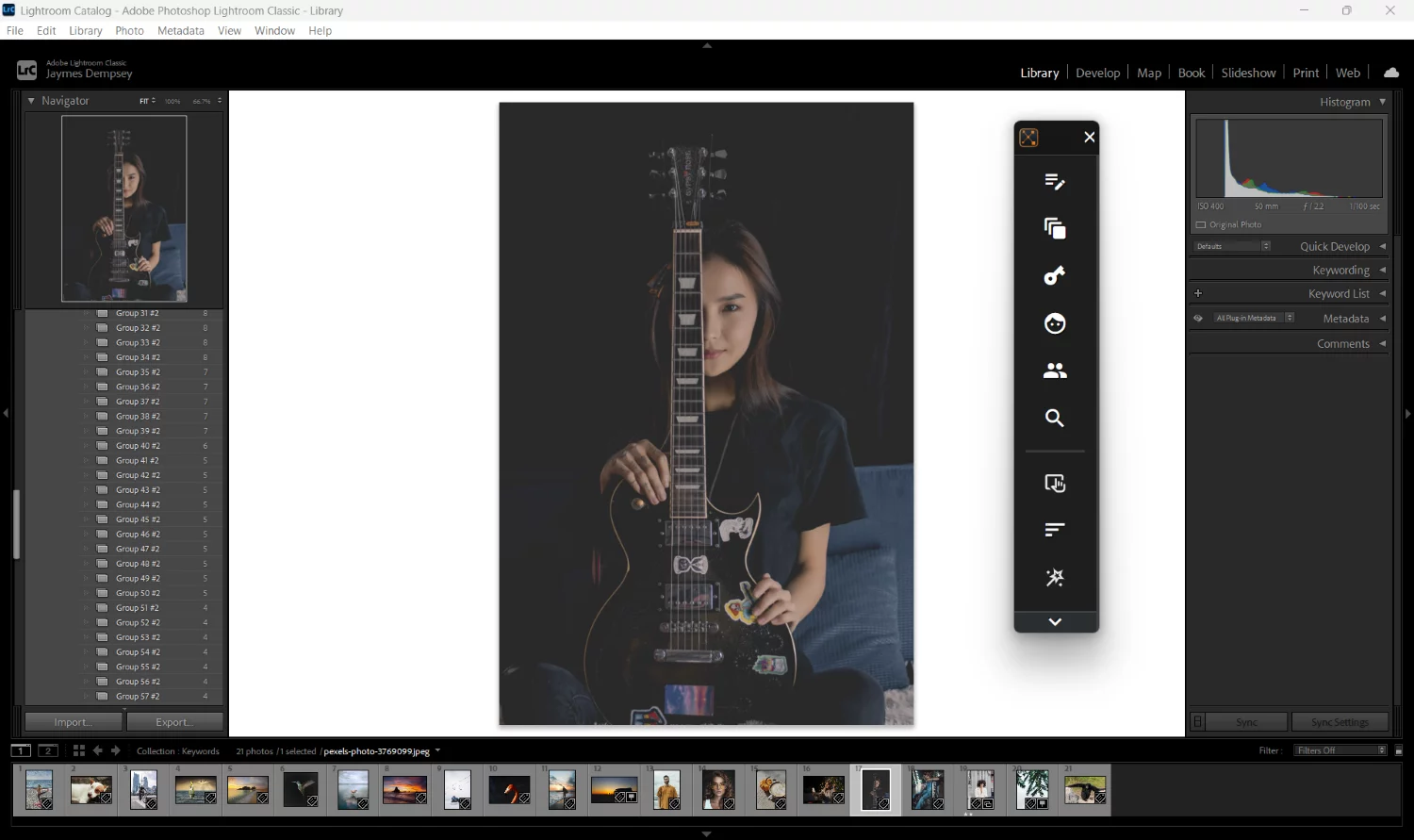
In other words, with Excire Search 2026 installed in Lightroom, you get nearly every feature offered in the standalone Excire Foto 2027, including automatic keywording, prompt search, aesthetic ratings, facial-recognition technology, duplication detection, and more. There are even dedicated culling tools, which can automatically group, sort, and select your best photos based on sharpness, aesthetics, visual similarity, and more.
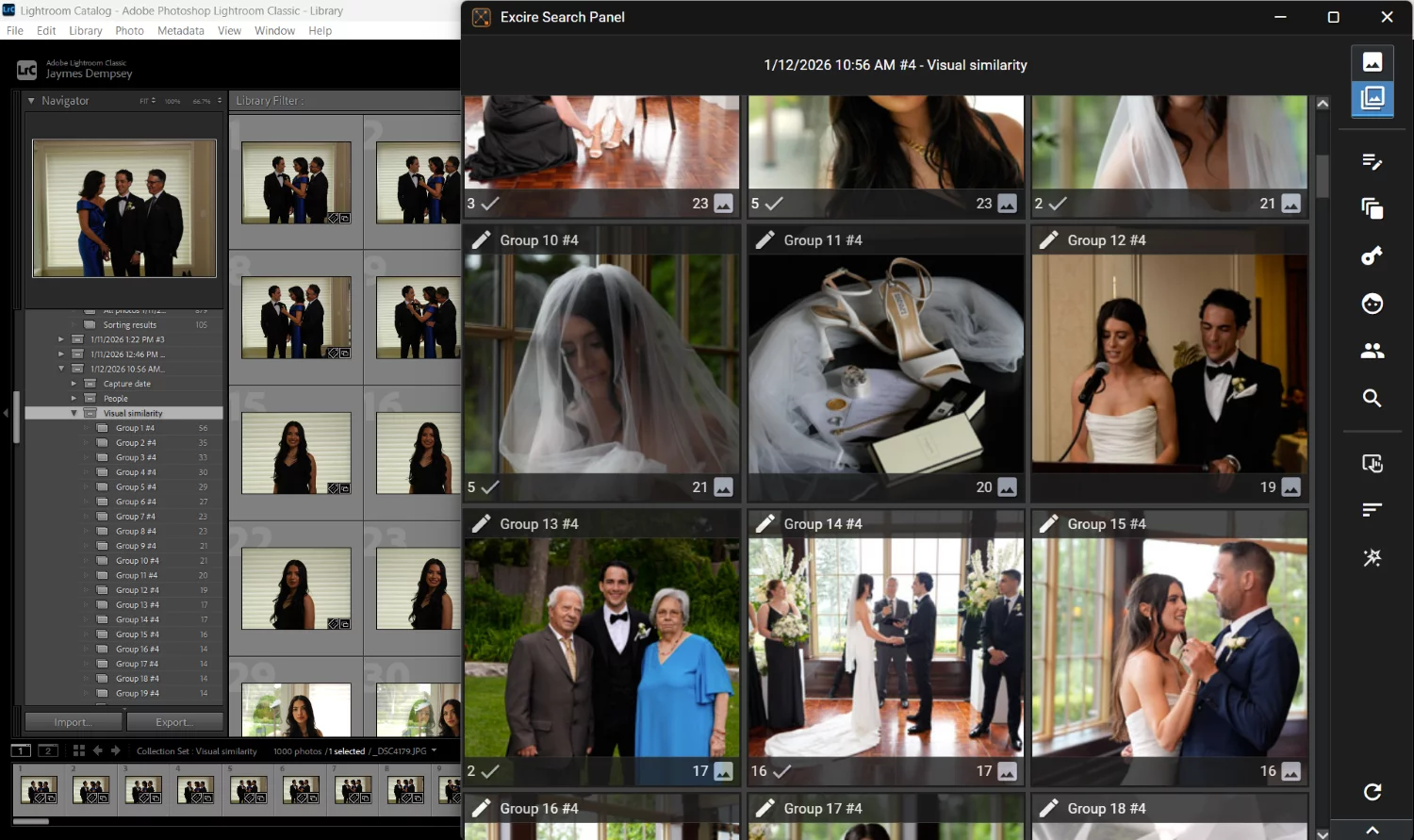
This Excire/Lightroom integration is the perfect choice for photographers who are already married to a Lightroom workflow, as well as photographers who need Lightroom’s editing capabilities but desire Excire’s class-leading organization and search tools.
To use the programs together, you’ll need to buy the Excire Search 2026 plugin in addition to subscribing to one of Adobe’s Photography plans. But the Search 2026 plugin is available as a lifetime license, and the amount of time you save behind the computer is well worth the cost.
3. ON1 Photo RAW: The Best Budget Image Manager

There’s just something special about ON1 Photo RAW. I don’t know if it’s the sleek interface, the comprehensive feature set, or the huge number of presets, but I always love testing ON1’s latest releases, so (no surprise) when I first trialed Photo RAW 2026, I was generally pleased with what I found.
Like Lightroom, Capture One, and several other programs on this list, ON1 Photo RAW is designed to offer RAW processing and image management in a single package. As a result, new releases tend to prioritize photo-editing upgrades over photo-management upgrades, and this was indeed the case for the Photo RAW 2026; while new features included some fantastic post-processing enhancements (automatic sensor dust removal, AI depth masks, and a handy color match tool, among others), there wasn’t much in the way of improved image-organization features.
But while I would have enjoyed some new AI-powered photo-management tools, ON1 Photo RAW is still an excellent choice for photographers on a budget. This is for a few reasons.
First, I’m a fan of the ON1 Photo RAW interface. Not only is it very easy on the eyes, but it’s also just simple to use—even if you’re completely unfamiliar with photo organizers, you can browse through files, apply ratings and labels, create albums, and switch back and forth between the editor and your image library without much trouble. The developers did a great job of packaging the program’s many features in a way that makes it highly accessible even for beginners.

There’s also an AI Keywords feature, which automatically tags your files so that you don’t have to. I’ve tested this tool with each new release, and I’ve found the AI to be decent, but it seemed to go for volume over accuracy. For instance, the racecar image displayed below was tagged with accurate keywords such as road, vehicle, car, and dirt—as well as other, less accurate keywords, including sidewalk, rock, snow, water, sea, and mountain.

Regardless, the tool should cut time off your keywording workflow, and if you don’t regularly keyword your images, it should get you off to a good start.

I also like Photo RAW’s Smart Organize options, which include the option to search for duplicate photos and photos that are similar in appearance. What I don’t love is the lag that I sometimes notice when putting the software through its paces, though if you have a high-powered computer, you may get better results.
Clearly, ON1 Photo RAW isn’t perfect. But despite its drawbacks, the program is wonderfully designed, and at just 100 USD for a perpetual license, it’s well-suited to beginners and other users in need of a full-featured budget photo organizer.
4. Capture One Pro: The Best Photo Organizer for Professionals

Capture One Pro is a professional photography program that offers both image-management and image-editing tools, including several powerful workflow features. Personally, while I think the program is well-made, and while it certainly deserves its place on this list, I’ve resisted incorporating it into my own workflow.
Why? First, it’s expensive; a perpetual license currently costs 349 USD, and if you go the subscription route instead, you pay somewhere between 18 USD and a whopping 63 USD per month (depending on your payment plan and interest in studio features). But more importantly, Capture One caters to a particular type of photographer: working professionals who require a reliable tethering setup and/or regularly do portrait or commercial photoshoots, and that’s not me.
On the other hand, if you need a program that’ll allow for consistent tethered shooting and/or you need to organize your files around sessions for clients, Capture One’s sophisticated tethering module and session-based organization workflow make it a fantastic choice. You can tether within Capture One, and then cull files thanks to the program’s Session Folders (which are specifically designed to help you categorize images for delivery or disposal). Capture One also boasts sophisticated exporting options that allow you to prepare images for a variety of purposes—your portfolio, your Facebook page, your Instagram feed, your client gallery, etc—and export them all at once.
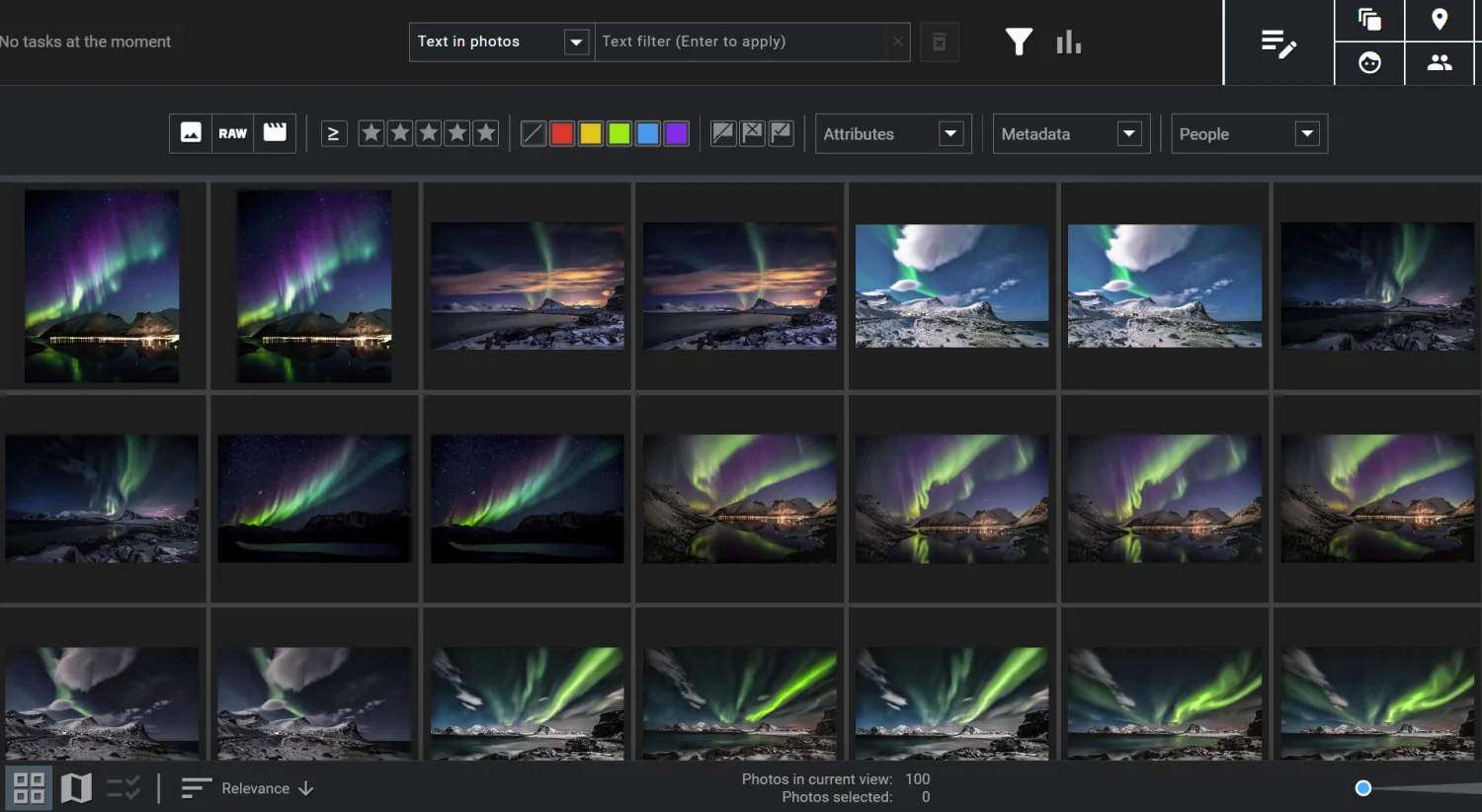
Capture One Pro isn’t right for my workflow, but when I tested the latest version, I genuinely liked it a lot. I was impressed by the speed when reviewing images, and the editing features are outstanding. I also appreciated the ability to change the thumbnail display layout, which is pretty unique and let me go from this:

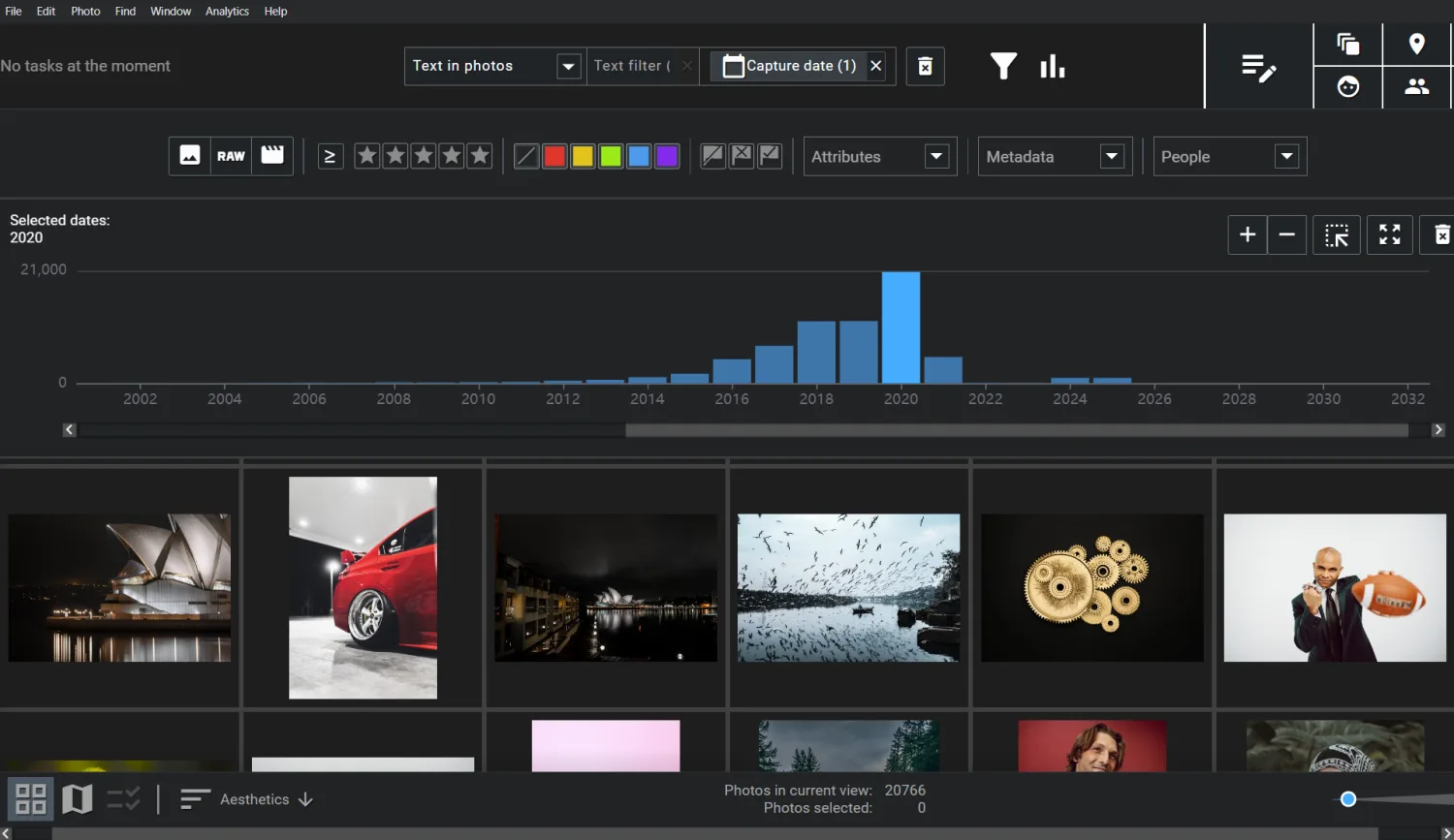
To this:

I do think the addition of a few AI photo-management features could make a big difference to professional photographers, but that’d just be icing on the cake.
Capture One Pro does offer one more feature worth mentioning: Snap to Eye, which uses AI to identify the eyes of portrait subjects, and then lets you check the sharpness in a magnified window. It’s a handy feature if you need to go through the files from a portrait shoot and would prefer to avoid constantly clicking and zooming on your subject’s face, though it doesn’t offer much for non-portrait shooters like myself.
At the end of the day, Capture One offers outstanding image organization tools for working professionals, especially those who regularly conduct photoshoots for clients. However, if you’re a hobbyist photographer, or you’re a professional who specializes in other forms of photography (e.g., landscapes or street scenes), Capture One may not be worth the cost, and you might be better off considering a different program on this list.
5. FastStone Image Viewer: The Best Free Image Manager for Windows
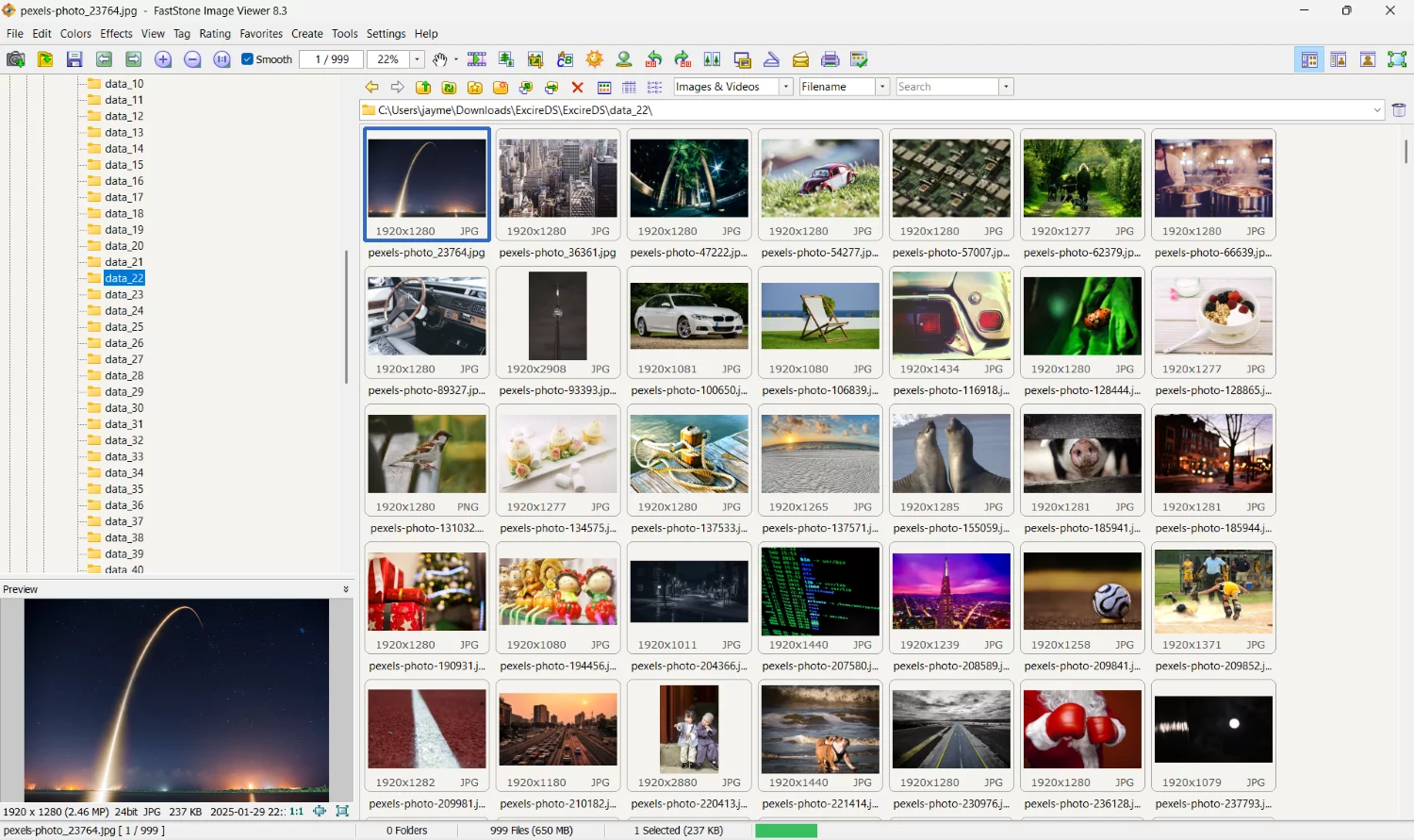
FastStone Image Viewer is a free photo organizer available for Windows users, but while the program is rather limited in its features, what it lacks in flair, it makes up for in speed.
Not only can you use the program to access images from your desktop folders without spending extra time on an import/export process, but the FastStone Image Viewer is blisteringly fast. Scrolling through my images in the FastStone interface was exhilarating (or as exhilarating as scrolling through images can be!) simply because the program was ridiculously responsive. Thumbnails appeared instantly, and I was able to zoom in and view full-sized images with astonishingly little lag.
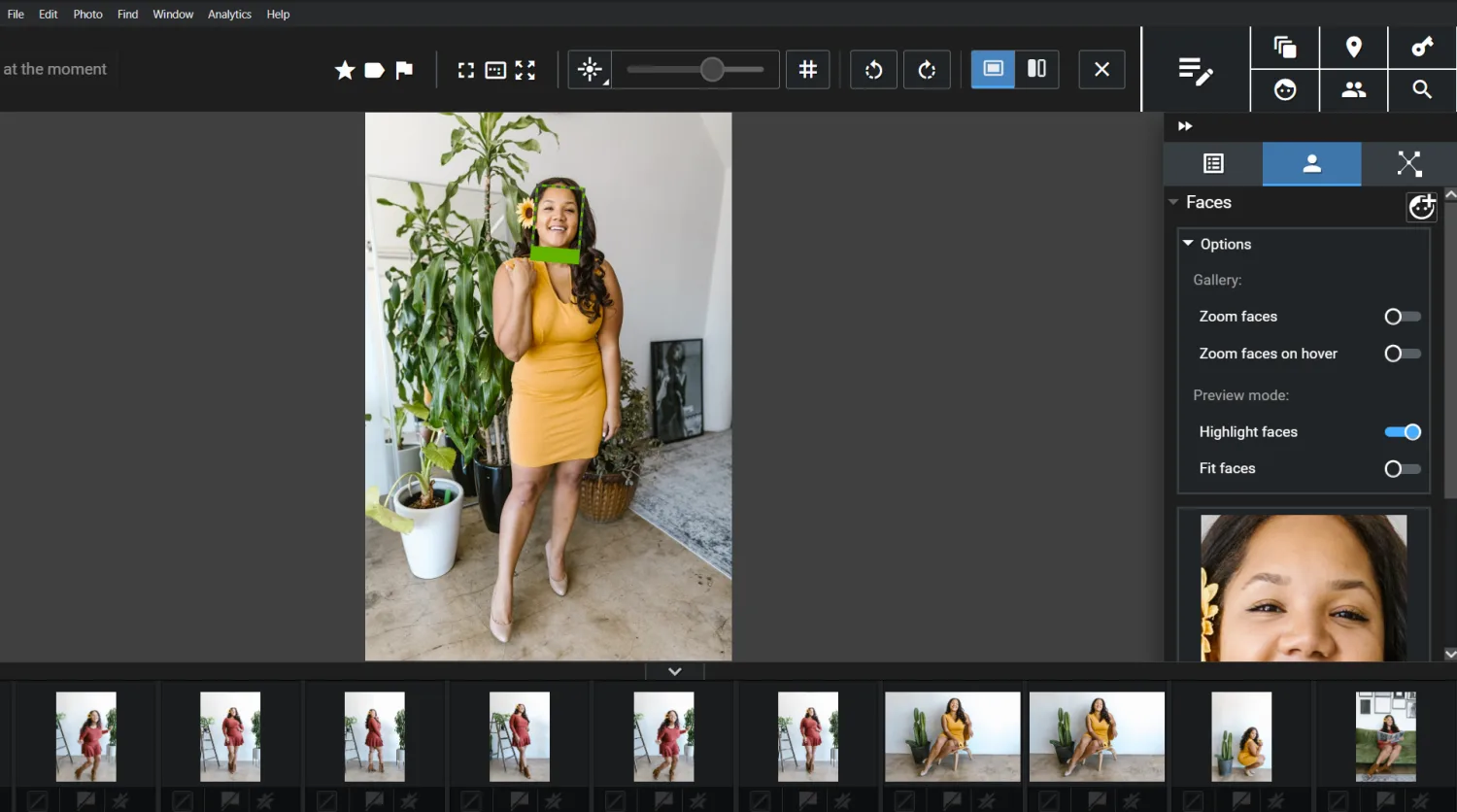
As long as you ignore the slew of icons along the top of the program, you’ll find the basic image-management workflow to be pretty intuitive; I was applying ratings and labels to my photos about a minute after I first launched the software. But what I love most about FastStone’s image manager is the full-screen view, which lets you sort through your images with zero distractions, and also allows you to bring up toolbars by hovering your cursor over the edges of the frame. The Compare Selected Images tool—which lets you view up to four images side-by-side—is another handy addition, especially if you often find yourself struggling to pick the perfect image for sharing on social media or your portfolio website.
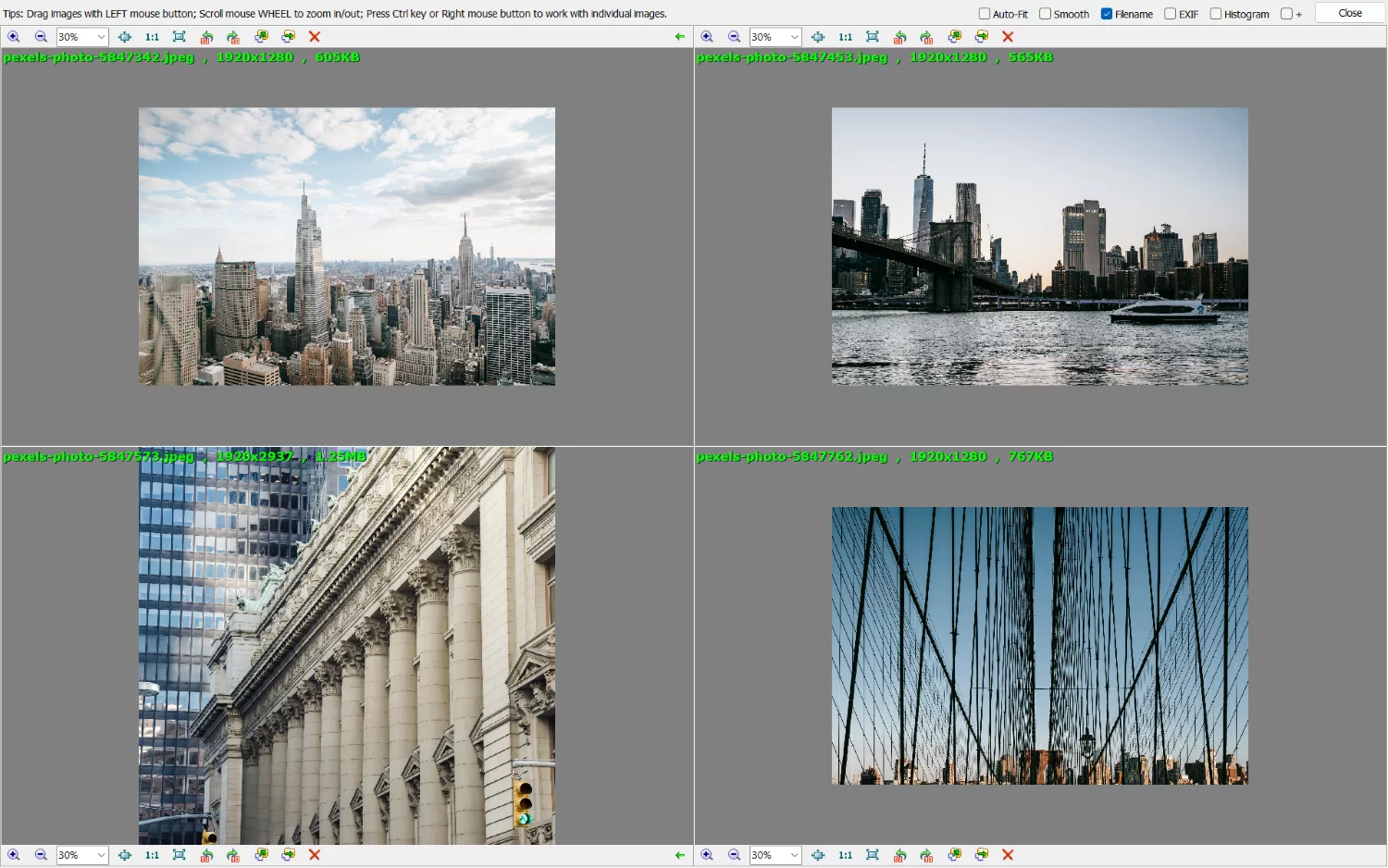
I think that the interface could do with an update, and the capabilities are a little lackluster, but if you’re a Windows user in search of a completely free photo manager, FastStone Image Viewer is certainly worth a try. (And if you don’t like it, you can always try one of the other programs on this list instead!)
6. Adobe Bridge: The Best Free Photo Organizer for Mac
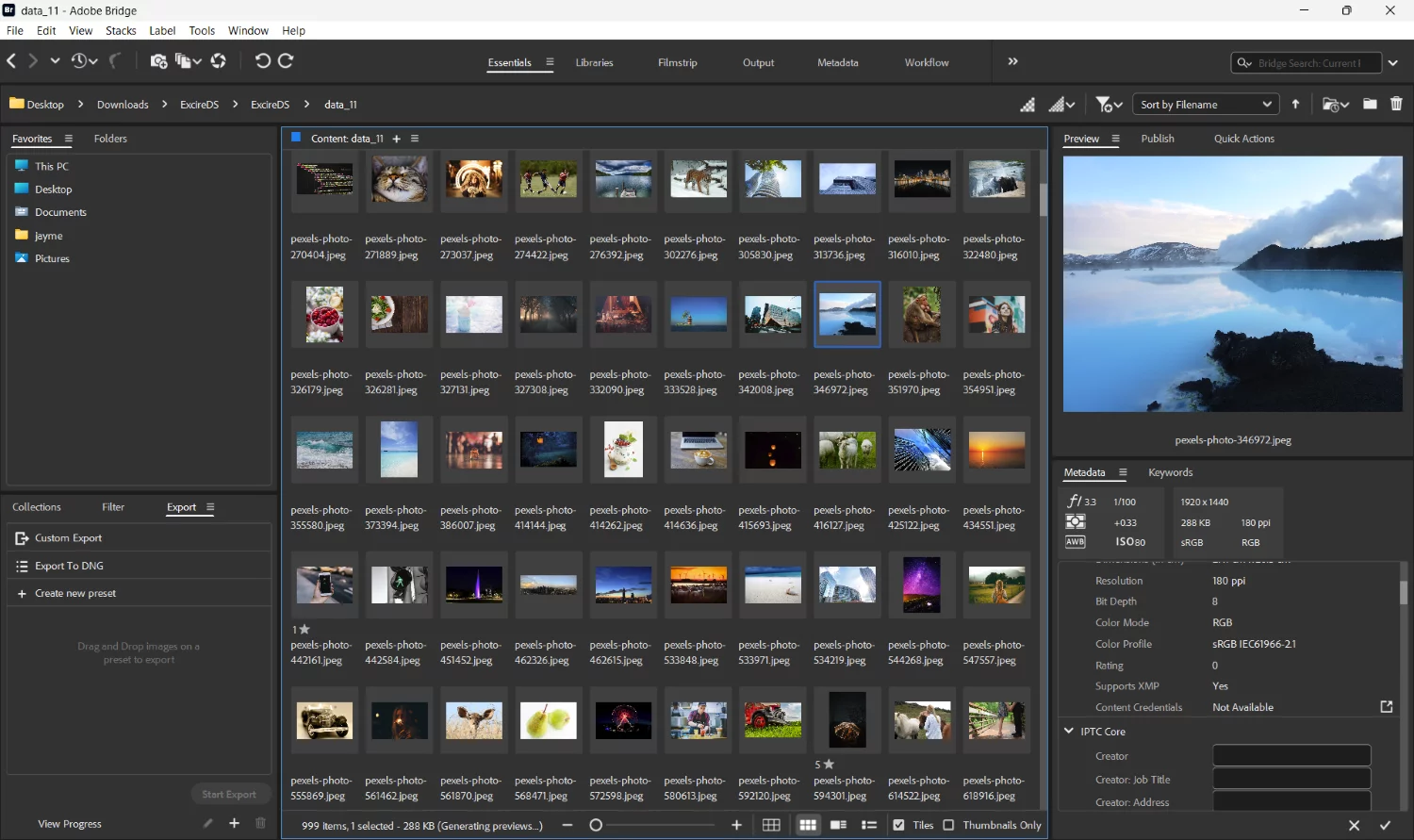
Adobe Bridge has faded in popularity in recent years, especially as a variety of programs with cutting-edge features exploded onto the scene, but Adobe’s dedicated file organizer deserves mention, and not just because it bears the Adobe name.
Despite its polished interface, the program is completely free to use. Back when I first got into photography, after purchasing a camera and lens, I couldn’t afford a Lightroom license, so I organized my images entirely with Adobe Bridge. It worked for me relatively well; back then, Bridge included all the standard metadata filtering, keywording, star ratings, and labeling features, and for a beginner with a relatively small collection of images, that was enough.
Since then, Bridge has undergone a significant redesign, but the core features are still there, and it still offers beginners a good starting point for image organization. Bridge doesn’t include the time-saving AI-powered tools offered by Excire, ON1 Photo RAW, and ACDSee, but if you’re only dealing with a small number of files, or you can’t justify the cost of a more powerful photo manager, Bridge will get the job done.
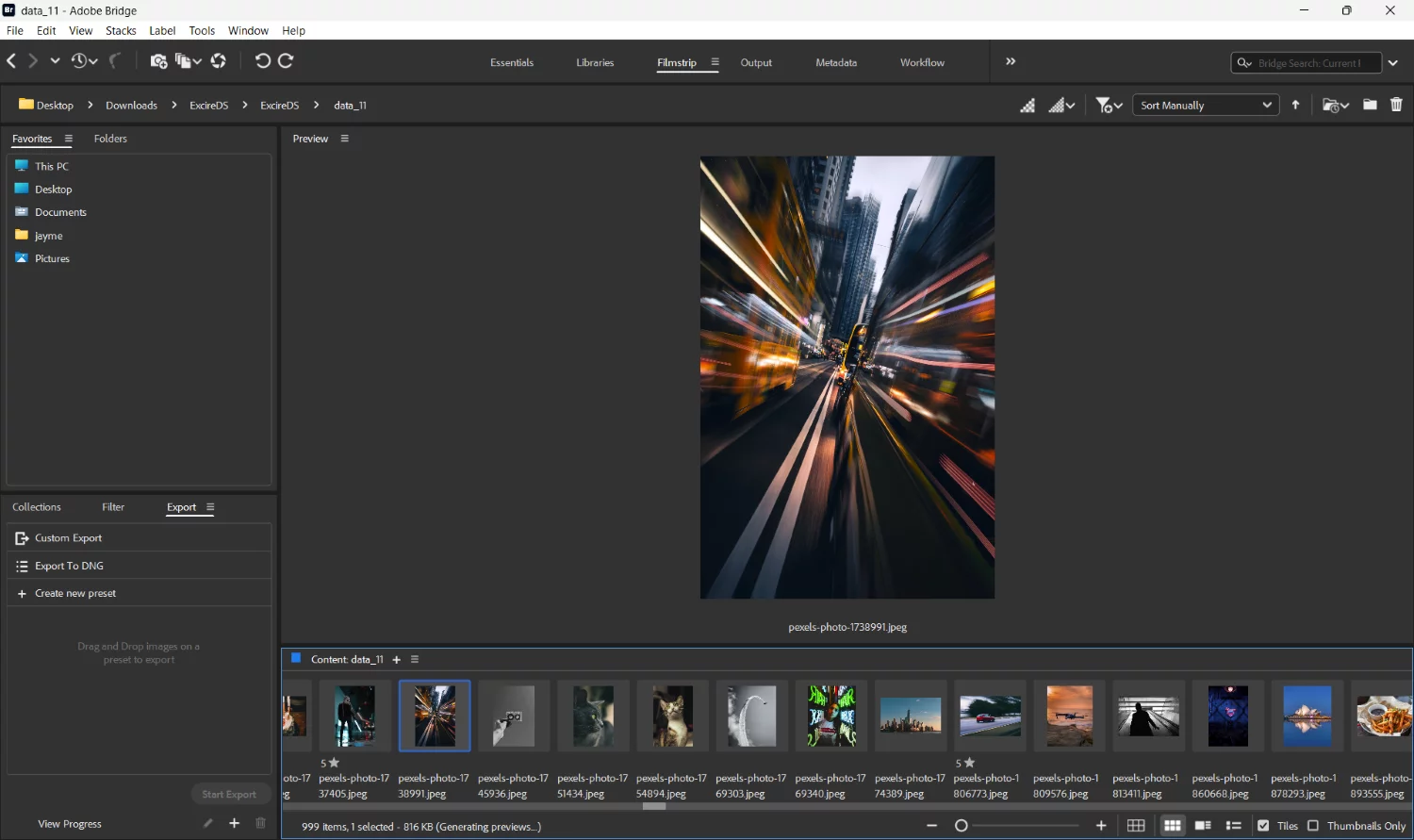
Adobe Bridge isn’t only ideal for beginners on a budget, however. It offers unique integration with both Adobe Camera Raw and Adobe Photoshop; from within the Bridge interface, you can open an image in either of those programs with a single click, which makes it a good choice for users who regularly use Adobe programs and who a) dislike Lightroom, or b) need a central hub that can store a variety of creative assets, including photos, graphics, and video files.
Bottom line: For users heavily invested in Adobe products, as well as beginners looking for a free image manager, Bridge is a solid choice. Just bear in mind that while Bridge itself is free to download, if you want access to Adobe Camera Raw and Photoshop, you’ll need to pay for a Creative Cloud Photography subscription.
7. ACDSee Photo Studio Ultimate 2027: The Best All-in-One Photo Manager
I first tested ACDSee Photo Studio back in 2019, and I was instantly a fan of the program’s editing capabilities—but while ACDSee’s photo-organization tools were fine, I can’t recall being especially impressed. Fast-forward seven years, and it’s a whole different ball game. I liked ACDSee Photo Studio Ultimate 2026, and my recent retest of ACDSee Photo Studio Ultimate 2027 went even better, not just due to the program’s range of editing tools, but also its image-management features.
For one, in addition to the standard DAM workflow tools—flagging, rating, keywording, etc— ACDSee offers an interesting Media module that allows for quick reviewing and filtering of your images. It’s a neat way to peruse a batch of images from a recent shoot, or to get an overview of the files in your catalog, and while I don’t love its separation from the Manage module, I think the simpler interface does provide workflow benefits.
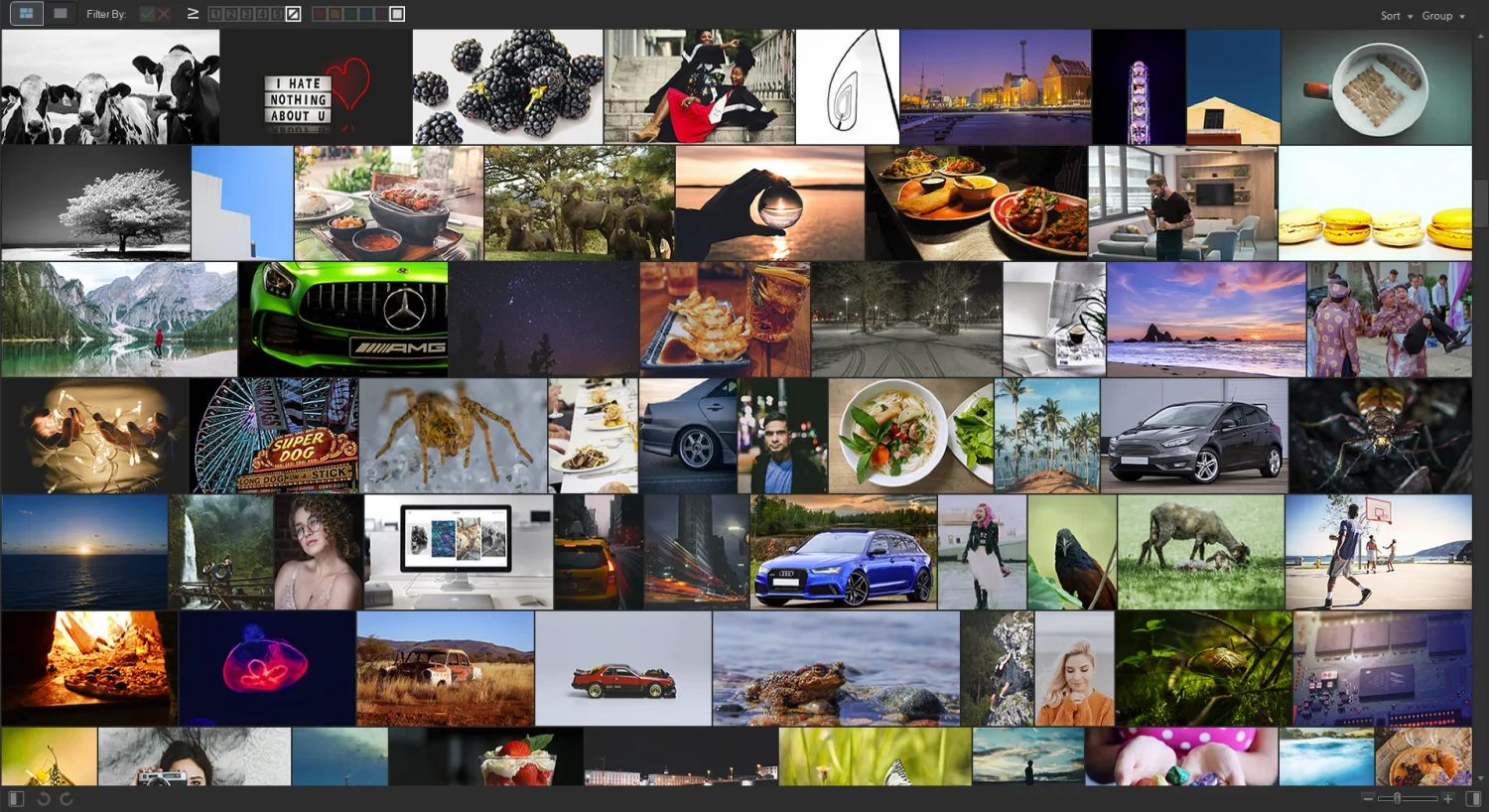
The program also incorporates several AI-powered capabilities to speed up your workflow. The program’s facial-recognition tech identifies faces and allows you to type in names for easy categorization. And the AI Keywords feature—which automatically applies relevant keywords to your images so you can avoid tedious manual tagging—is nice, though I do wish the keywords were more descriptive.
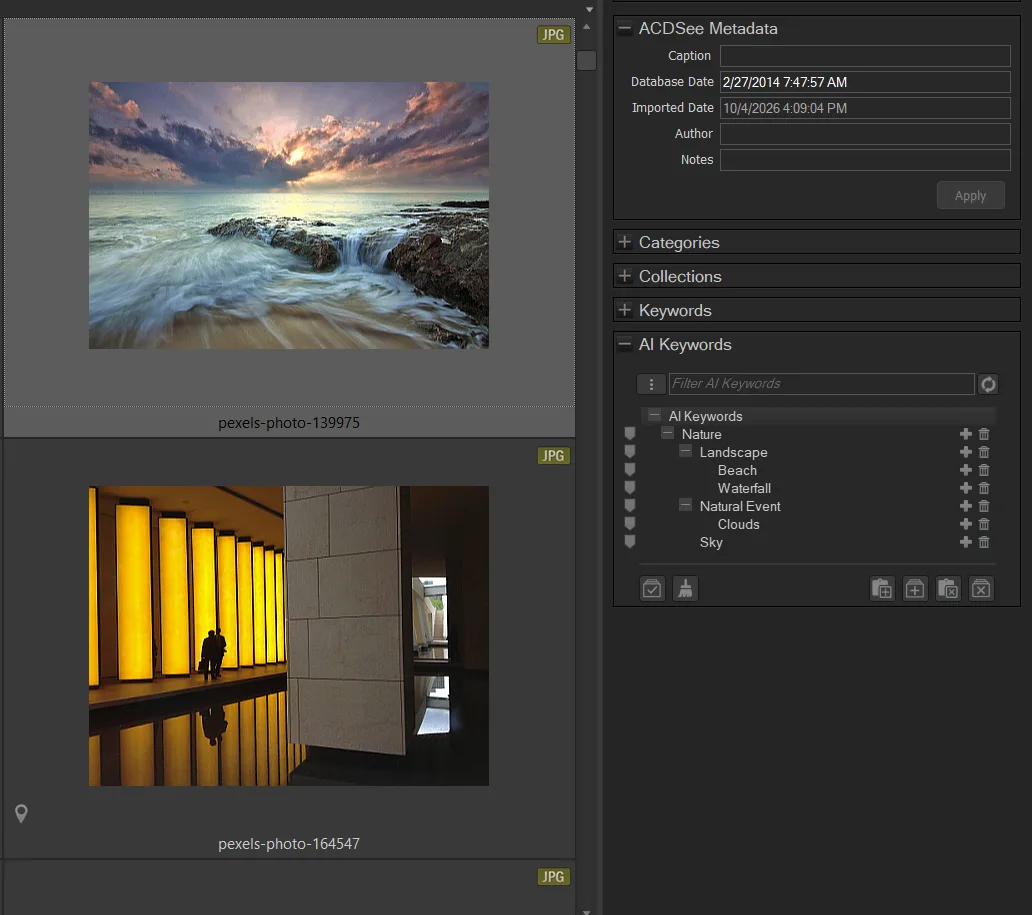
For example, I checked ACDSee’s AI keywords for a long-exposure beach shot (shown below). They included “beach,” “landscape,” “clouds,” and “sky,” which are accurate, if a bit vague. “Waterfall” was also included, which is a mistake but an understandable one.
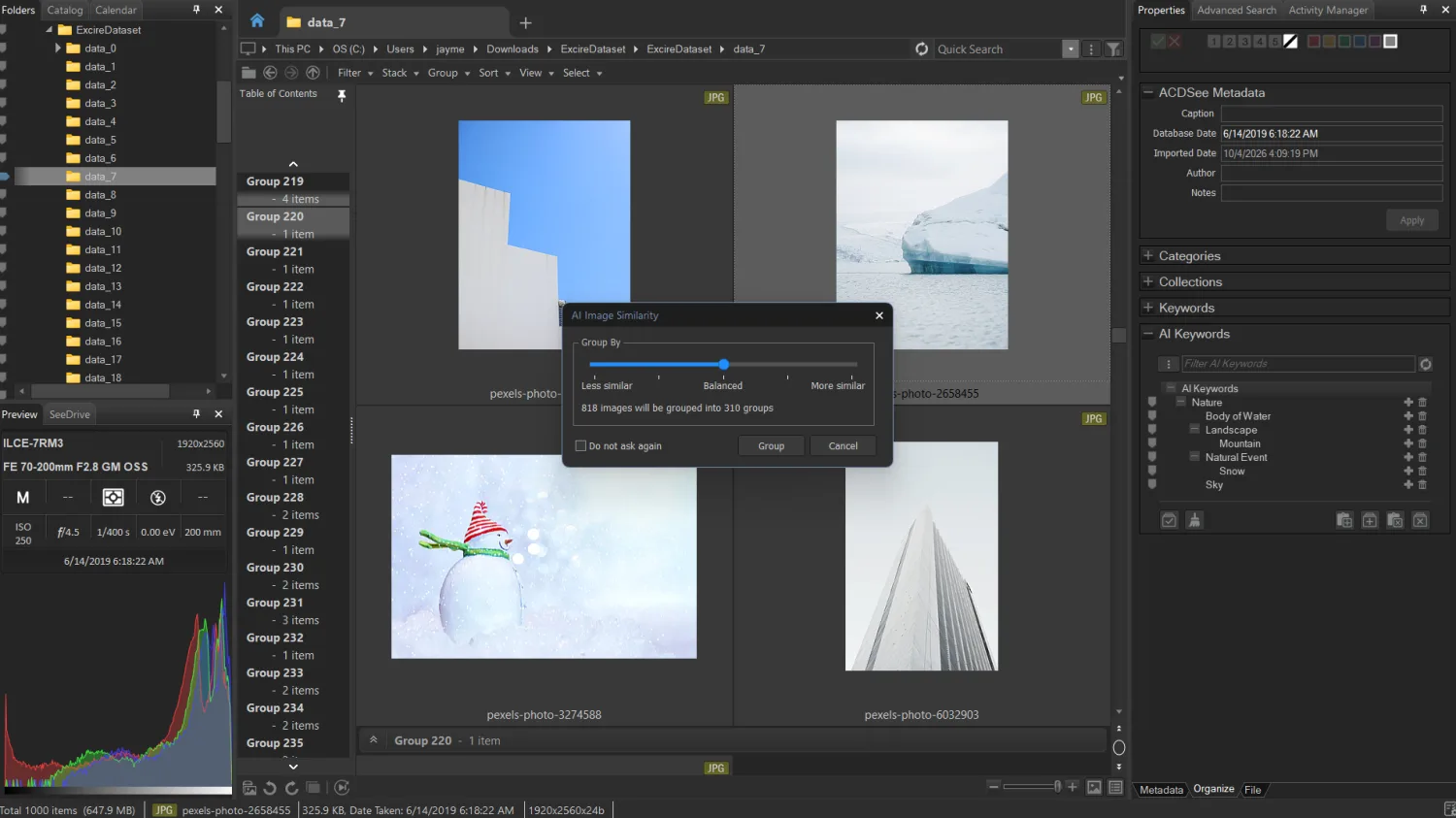
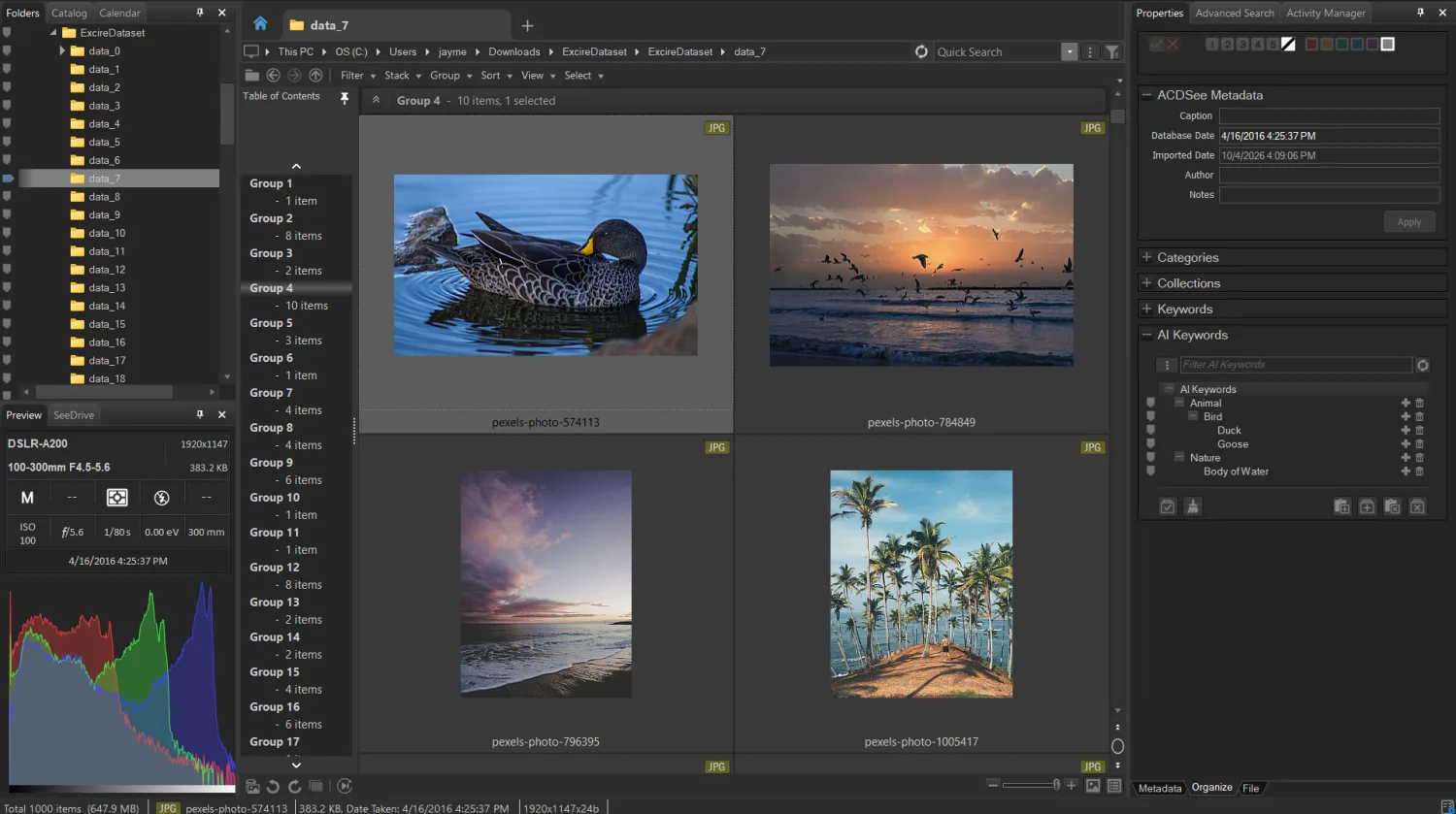
In principle, I like the new stacking and grouping features, even if Excire has offered similar tools for several years now. But when I tested the AI similarity grouping, the results were fairly disappointing. The software grouped together images that only seemed loosely related, and at times I struggled to see the link between the grouped files. ACDSee does include a similarity slider, and you can use to customize the distance between images; however, even when set to maximum strictness, the tool just consistently came up short.
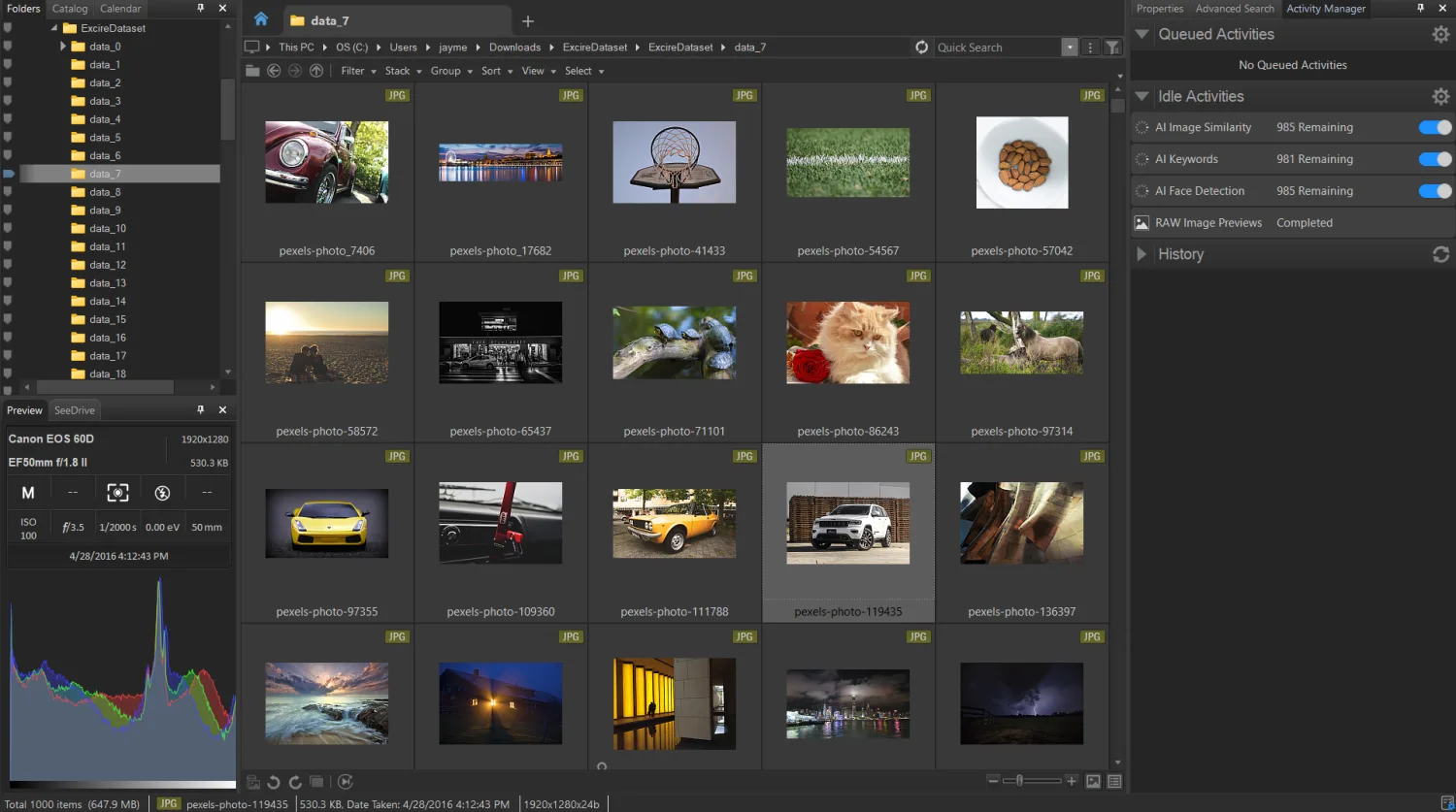
For me, the biggest drawback to ACDSee Photo Studio 2027 is the outdated and sometimes complex design. When I work with the program, it just feels old, and tools —like the image search shown below—can be overloaded with options.
In general, ACDSee’s AI-powered DAM features are useful, but it’s important to keep your expectations in check, and if you’re after class-leading AI organization software, Excire Foto 2027 is undoubtedly the better choice. For me, what makes ACDSee Photo Studio Ultimate 2027 so special isn’t the image-management features or the editing features alone. Rather, it’s the combination of the two, which turns Photo Studio Ultimate into a one-stop shop for editing and photo organization.
Pick a Photo Manager and Clean Up Your Catalog!
Each of the programs on this list offers a variety of impressive image-management features, including—but not limited to—automatic keywording, facial-recognition tech, AI-powered culling tools, and the futuristic prompt search. At the end of the day, however, picking the perfect photo organizer is as much about your needs as a program’s capabilities. So before you hit that Buy button, you have to ask yourself: What matters to me most? What do I want from my image-management software?
If you’re looking for an AI-powered image organizer, Excire Foto 2027, with its time-saving features, is an amazing choice. And if you’re set on Adobe software, consider using Lightroom Classic with the Excire Search 2026 plugin, which brings Excire’s next-level AI tools into Adobe’s popular interface.
For folks seeking a budget image manager, ON1 Photo RAW 2026 is a good pick, while FastStone Image Viewer is a great free alternative. And working professionals who also need top-notch tethering should consider Capture One Pro; yes, it’s expensive, but the advanced workflow capabilities are worth the cost.
So pick an image organizer, then spend some time getting your photos keyworded, rated, and categorized. Thanks to these programs, it may be easier than you think!

About the author
Jaymes Dempsey is an award-winning photographer and educator with over 16 years of experience across a wide range of genres, including bird, macro, landscape, street, and architectural photography. Based in Southeast Michigan, Jaymes serves as the Marketing Director for North America at Excire. He is passionate about helping photographers get—and stay—organized using AI-powered software. To explore Jaymes’s nature photography, visit his website. You can find his latest street and documentary work in his Michigan Spaces portfolio.