
Culling a new batch of images can take hours, and for me, it’s an unrelenting slog. After reviewing hundreds (often thousands) of photos one by one, my eyes start to hurt, my head feels like it’s going to explode, and I no longer trust my ability to evaluate images accurately.
Your experience may not be quite so dramatic, but my point still stands: For most photographers, culling is one of the least enjoyable aspects of the workflow. Fortunately, it doesn’t have to be that way. There is software designed to make culling faster and less painful, and in recent years, companies have begun offering AI-powered culling solutions; here, artificial intelligence handles much (or all) of the heavy lifting, freeing up the photographer to spend more time photographing, editing, engaging with clients, or just enjoying extra time with family and friends.
Photographers are often skeptical of AI culling software, and for good reason: Many so-called AI photography tools are little more than gimmicks that promise automation but end up slowing down your workflow rather than improving it. I used to think that AI culling was a waste of time, and that no software could do an effective job of picking the good photos from the bad.
But over the last few years, my views have changed. I now use smart culling regularly, and I can confidently say that some of these AI-powered tools really do save time; you just have to find the right program with the features and flexibility to match your workflow. And that’s where this article comes in.
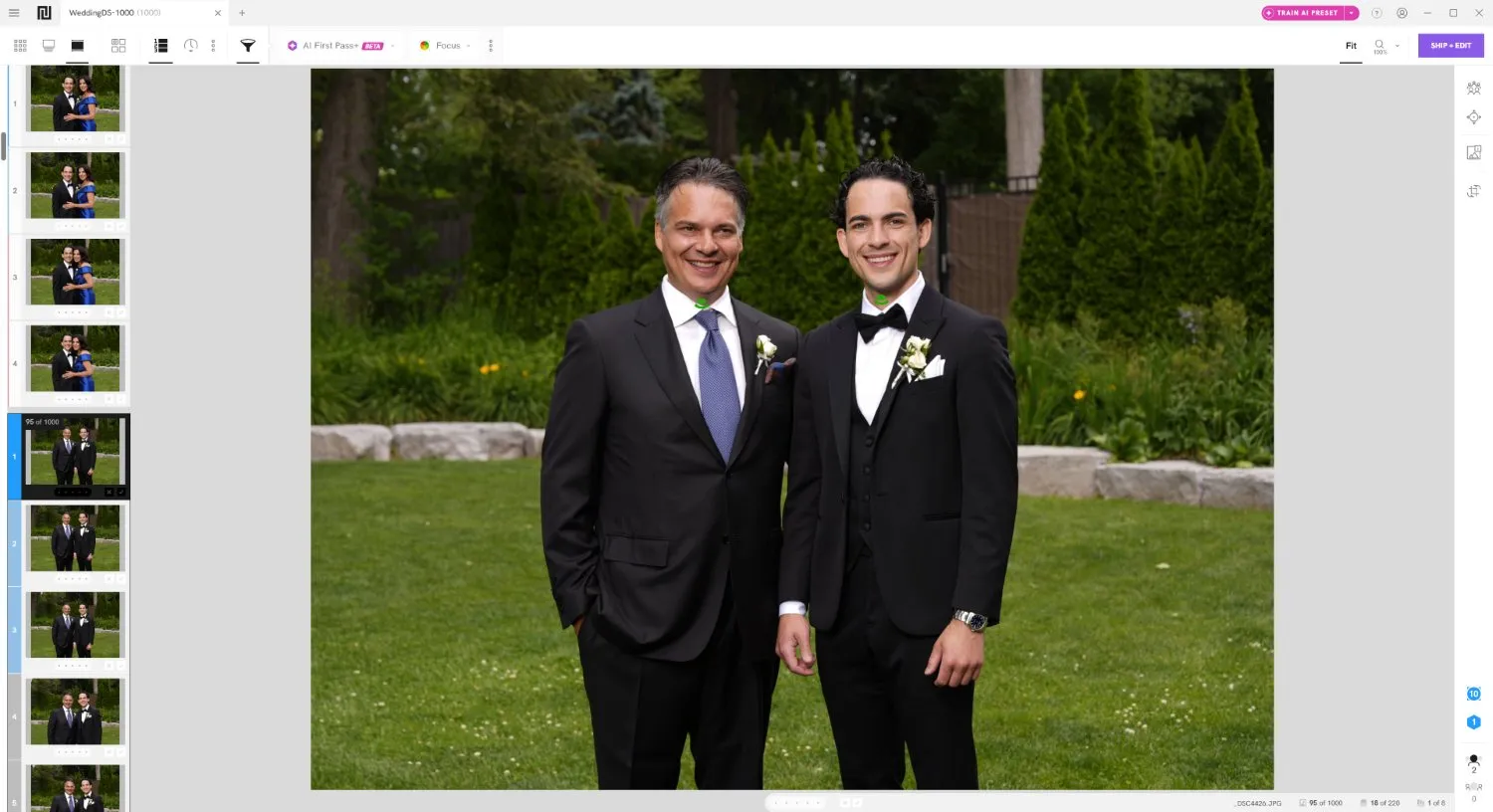
Over the past four weeks, I’ve spent dozens of hours testing a range of culling tools, including AI-powered programs as well as some of the most popular manual culling solutions used by professional and enthusiast photographers. For consistency, I ran each test using the same set of 1000 wedding photos, and I made sure to evaluate each program carefully, paying attention to factors such as usability, speed, workflow efficiency, and—when applicable—the accuracy and usefulness of the AI culling tools.
By the time you finish reading, you’ll have a clear understanding of the best culling software available today. And you’ll be ready to choose a tool that can dramatically speed up your photo-selection workflow in 2026.
Let’s dive right in.
1. Best for AI-Powered Culling: Excire Foto 2025
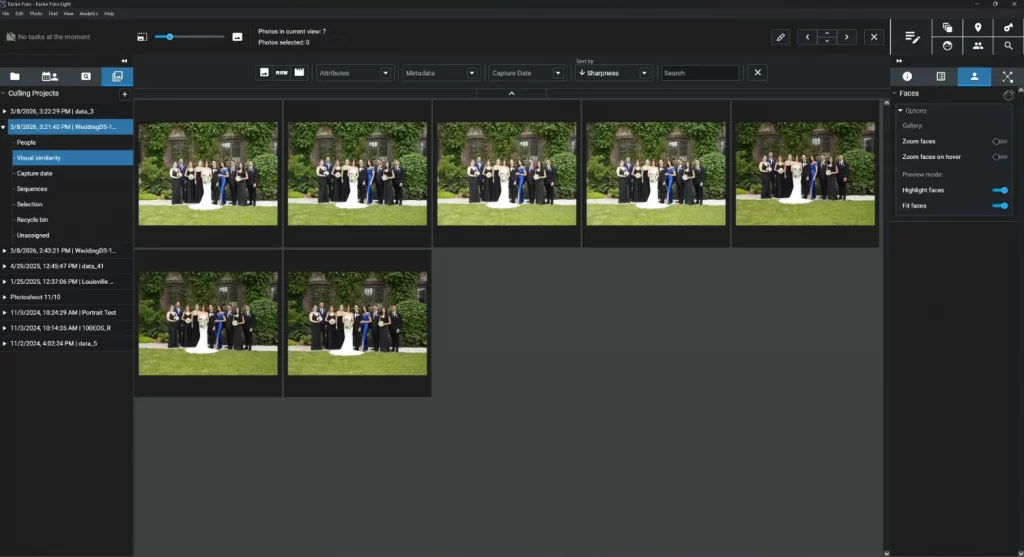
If you’re hoping to save time with smart culling tools and you place a premium on workflow flexibility, then look no further than Excire Foto 2025, an AI-powered photo-management program that offers a dedicated culling module (alongside a slew of other AI tools for finding and organizing photo collections).
Excire is my main culling tool today, because unlike competing tools that focus heavily on one-click automation, Excire takes a different approach: it combines powerful AI analysis with extensive configurability. Instead of forcing you into a heavily automated workflow, Excire allows you to decide exactly how much control you want to retain during the culling process.
For instance, you can have the AI:
- Group your photos by visual similarity, content, people, and more
- Group and sort your photos, using characteristics such as global sharpness, face sharpness, eye sharpness, face expression, and aesthetic quality
- Group your photos, then make the final selections from each group automatically
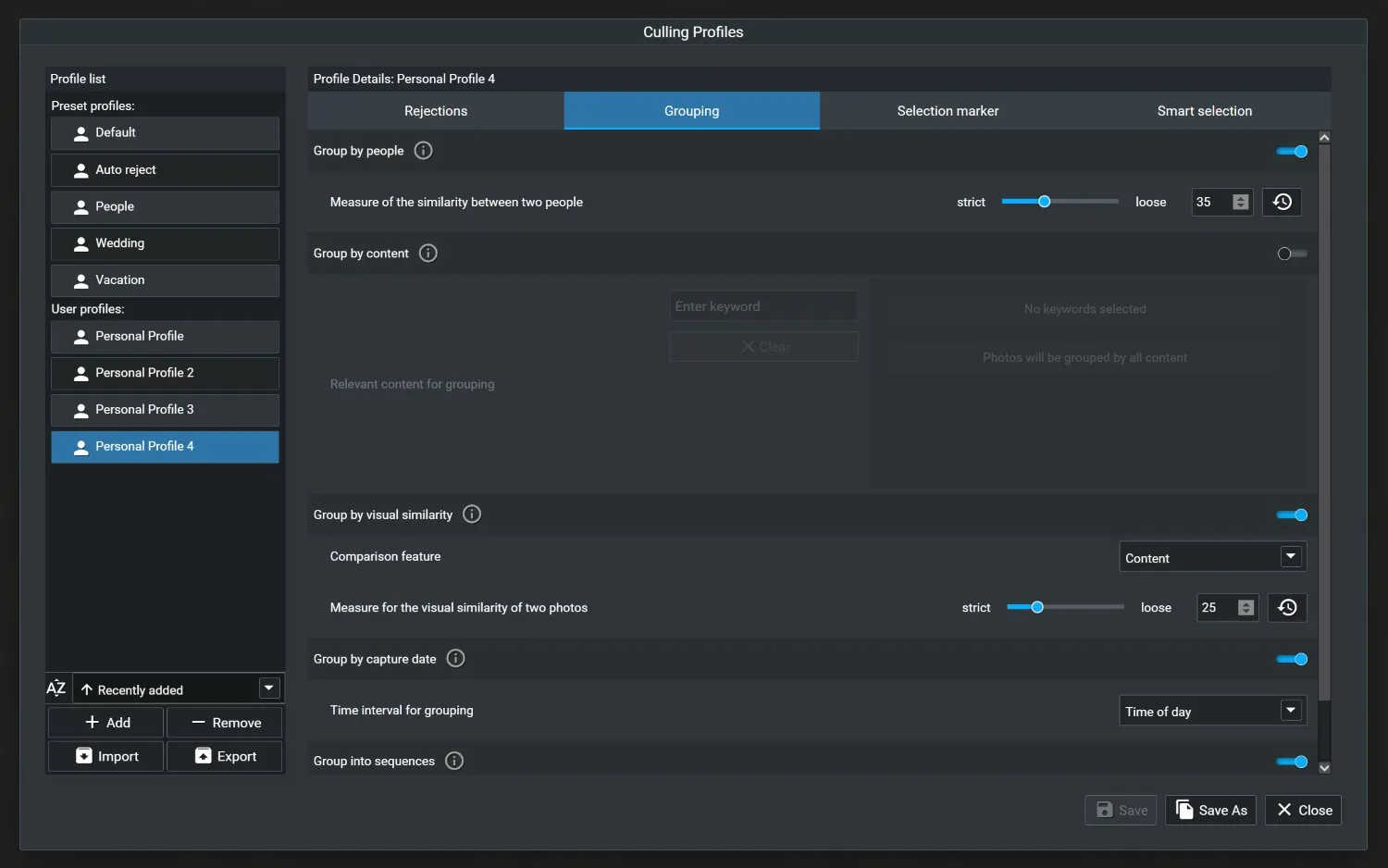
You can even create your own custom culling profiles, which allow you to apply the same analysis settings to future shoots.
In my own workflow, I typically start by grouping images using visual similarity. From there—depending on the type of photos I’m working with—I sort each group by characteristics such as aesthetic score and eye sharpness. Then I quickly review the top few images to choose my favorite. (In my experience, this approach makes it easy to move through large shoots quickly while still retaining full control over the final selections.)
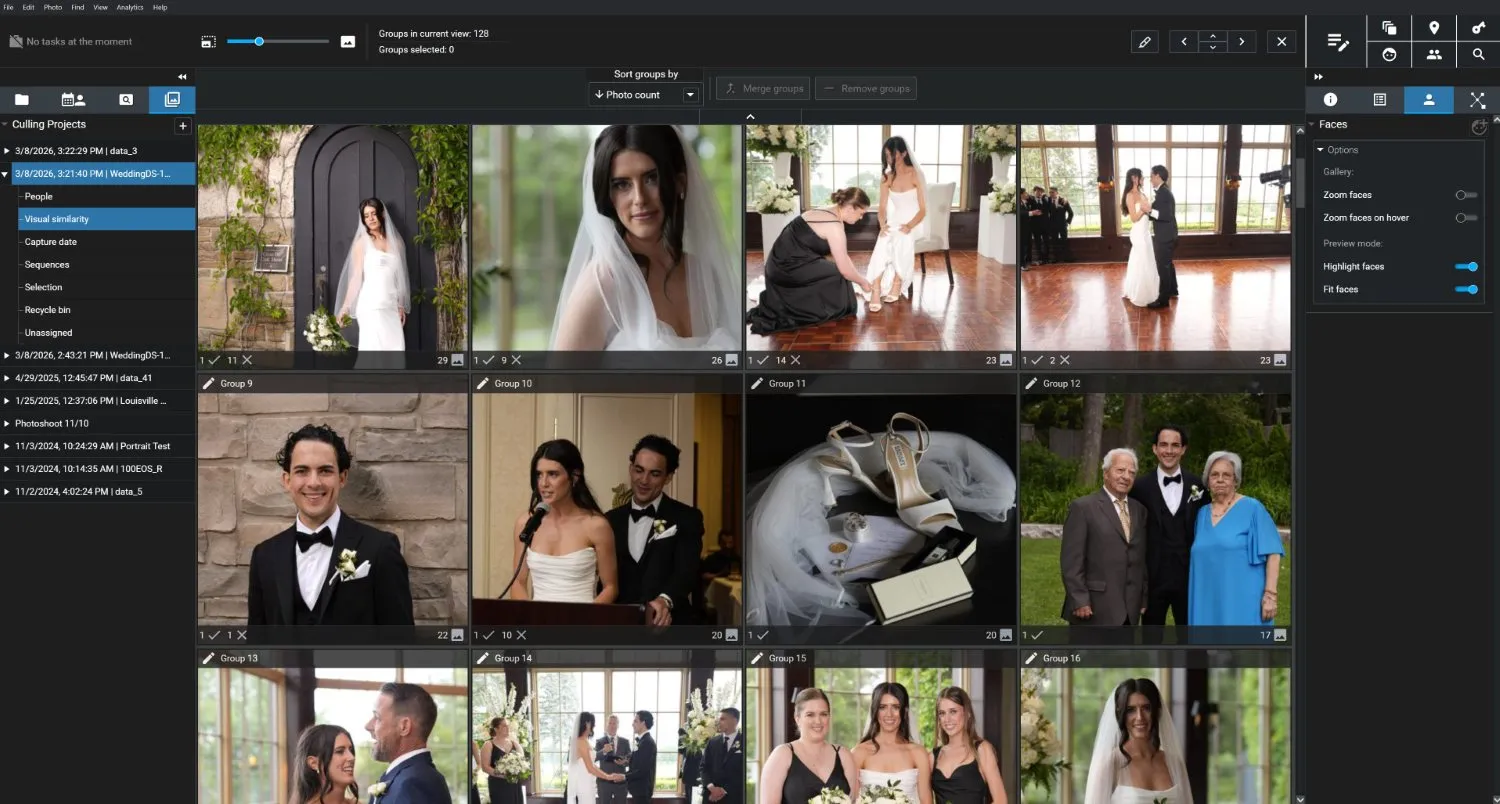
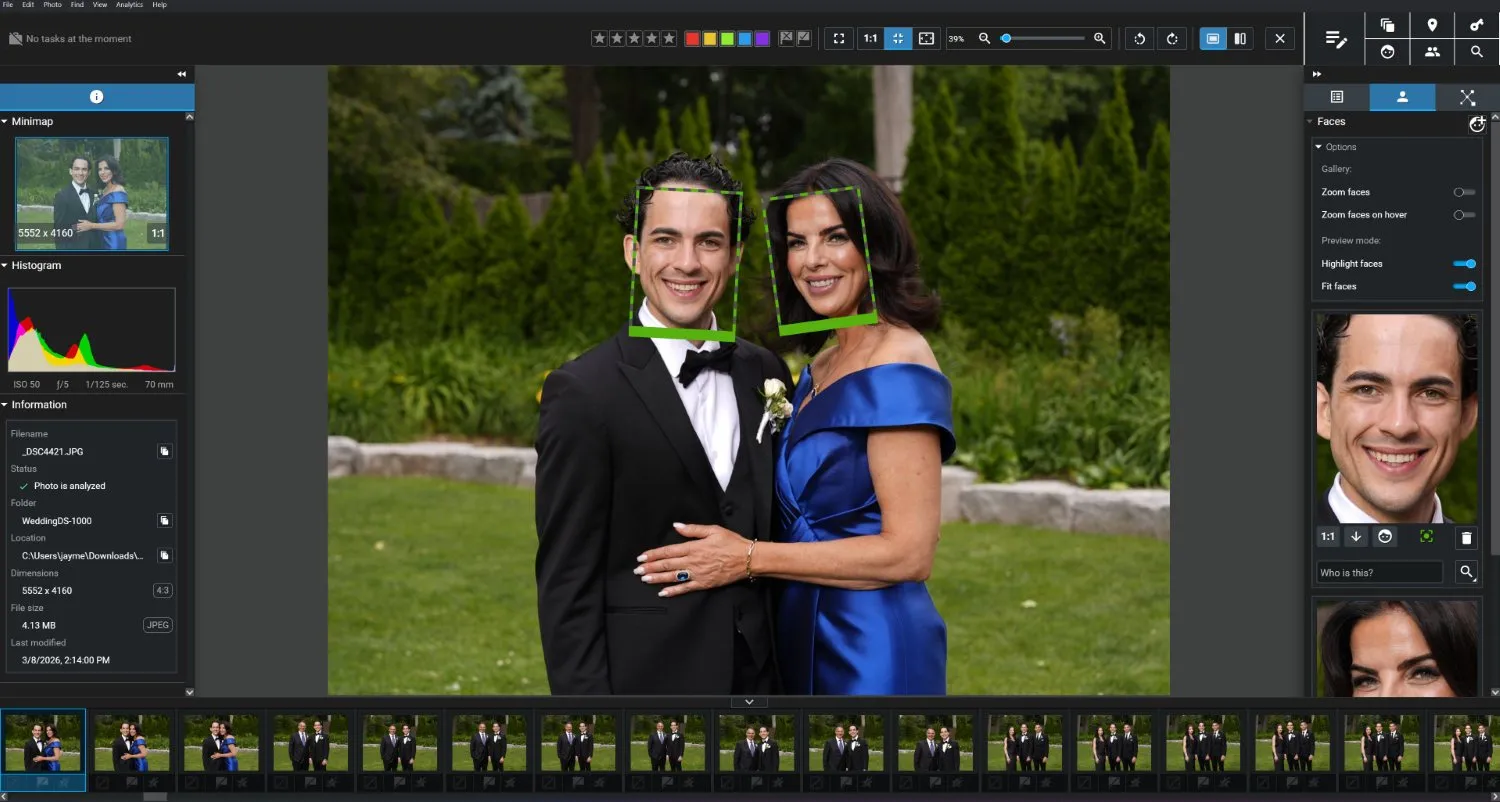
Out of all the AI culling programs I tested, Excire offered the most AI grouping options (by far) as well as the most AI evaluation factors. Notably, the visual similarity grouping was more accurate than the competition—neither too broad nor too narrow, with a sensitivity slider that lets you adjust to suit different types of shoots. And the magnified face views are hugely handy when working with portrait photos, even if the Faces panel looks a little clunky.
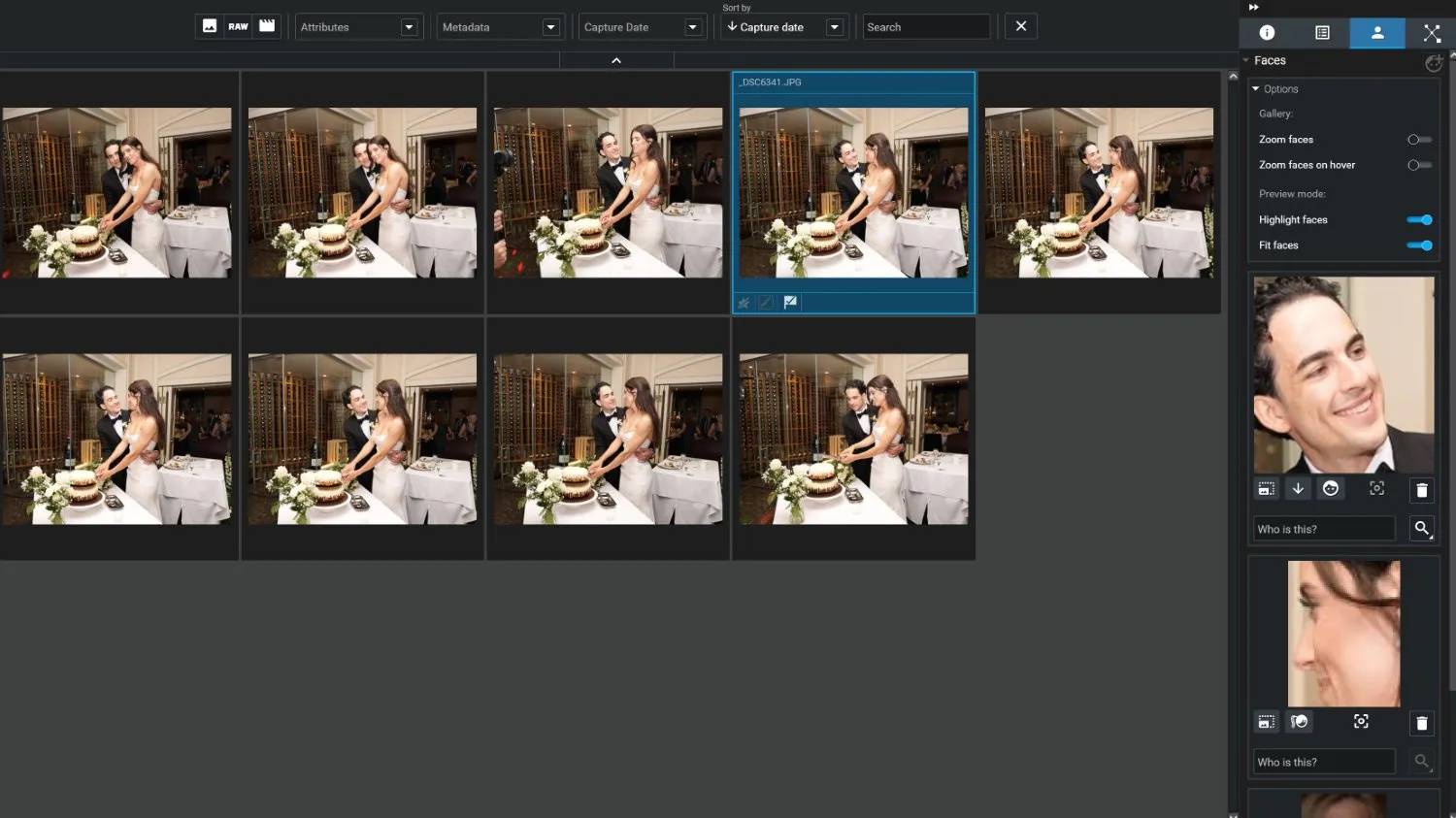
It’s fast, too; Excire culled the entire set of 1000 wedding photos in just three minutes, a feat matched only by Narrative (also on this list, below!). And images load with essentially no delay, so you can review hundreds of photos at a breakneck pace. Plus, since Excire runs locally on the user’s computer, you don’t have any privacy concerns (or any lag) that comes from uploading images to the cloud.
In my view, Excire’s biggest limitation is also its greatest strength: As a highly configurable program, the learning curve is steep. For many photographers, it’s absolutely worth the effort, but you have to be willing to put in the time if you want to make it work for you. I’ll also note that Excire is a dedicated photo manager, and as such, it doesn’t include any built-in editing tools. However, the program integrates smoothly with virtually all major image editors, allowing you to send your final picks to Lightroom, Capture One, Photoshop, DxO PhotoLab, and more.
Bottom line: With its powerful AI-assisted selection tools and extensive photo management features, Excire offers the most powerful AI culling toolkit available to photographers in 2026, provided you’re willing to do your editing in a separate program. And with a lifetime license model (currently $229), Excire is by far the cheapest program on this list.
2. Best for Usability: Narrative
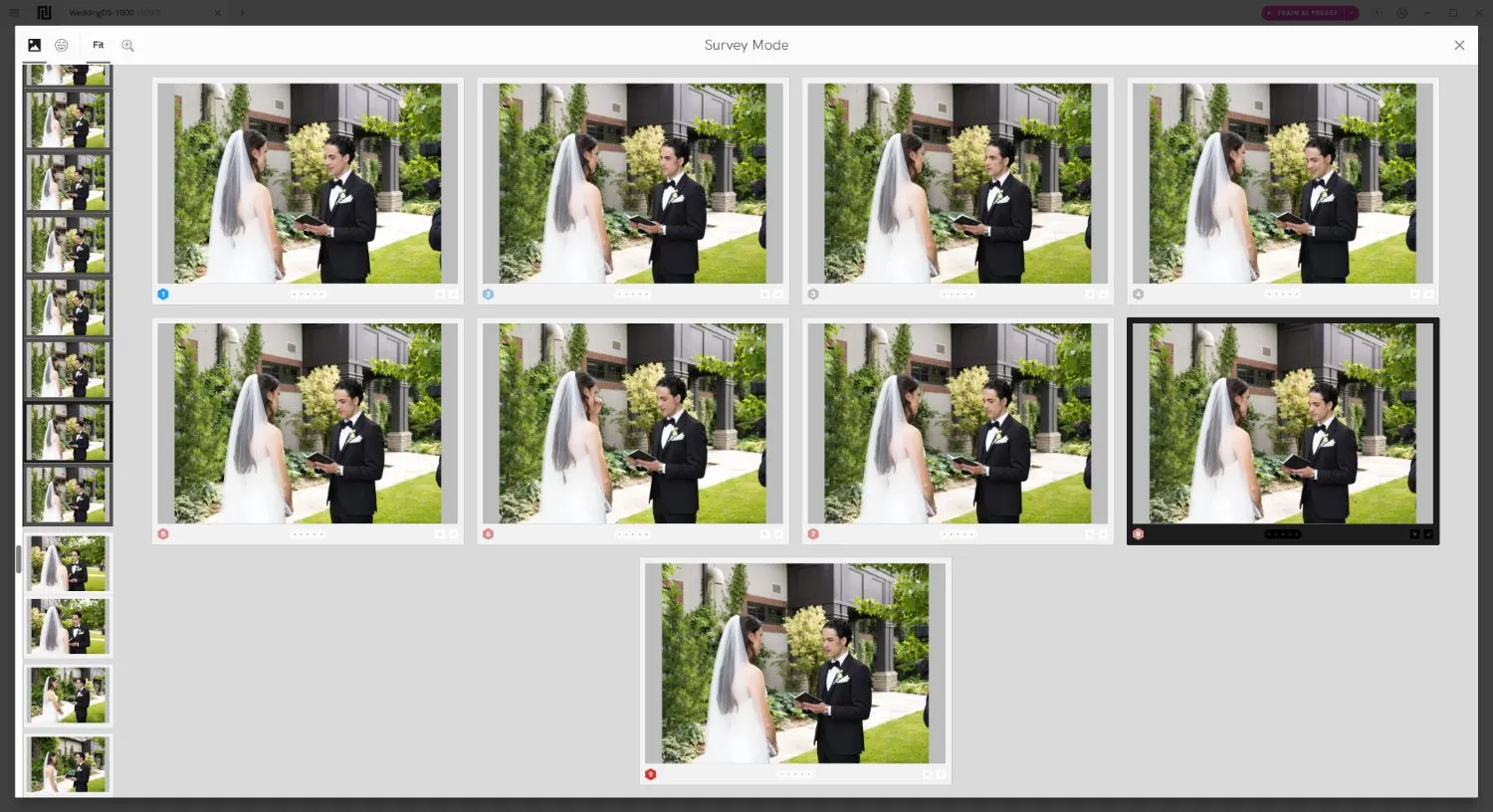
If you’ve spent time in professional photography circles, then you’ve undoubtedly heard of Narrative, the dedicated AI culling program that’s gained a lot of traction over the past few years. I went into my testing with high expectations, and happily, Narrative didn’t disappoint.
Though Narrative includes AI editing features, it’s first and foremost an AI culling program, and it shows. The interface is beautifully designed, and getting started with the program was ridiculously easy: I imported my set of test wedding photos, then waited while the software automatically organized the images into “Scenes” (i.e., groups of visually similar images). This took about three minutes, putting Narrative’s AI analysis speed on par with Excire. Also like Excire, navigating through images was fast and responsive, and the layout was even more intuitive, with a view configurability that displayed each set of visually-similar shots to suit my preferences.
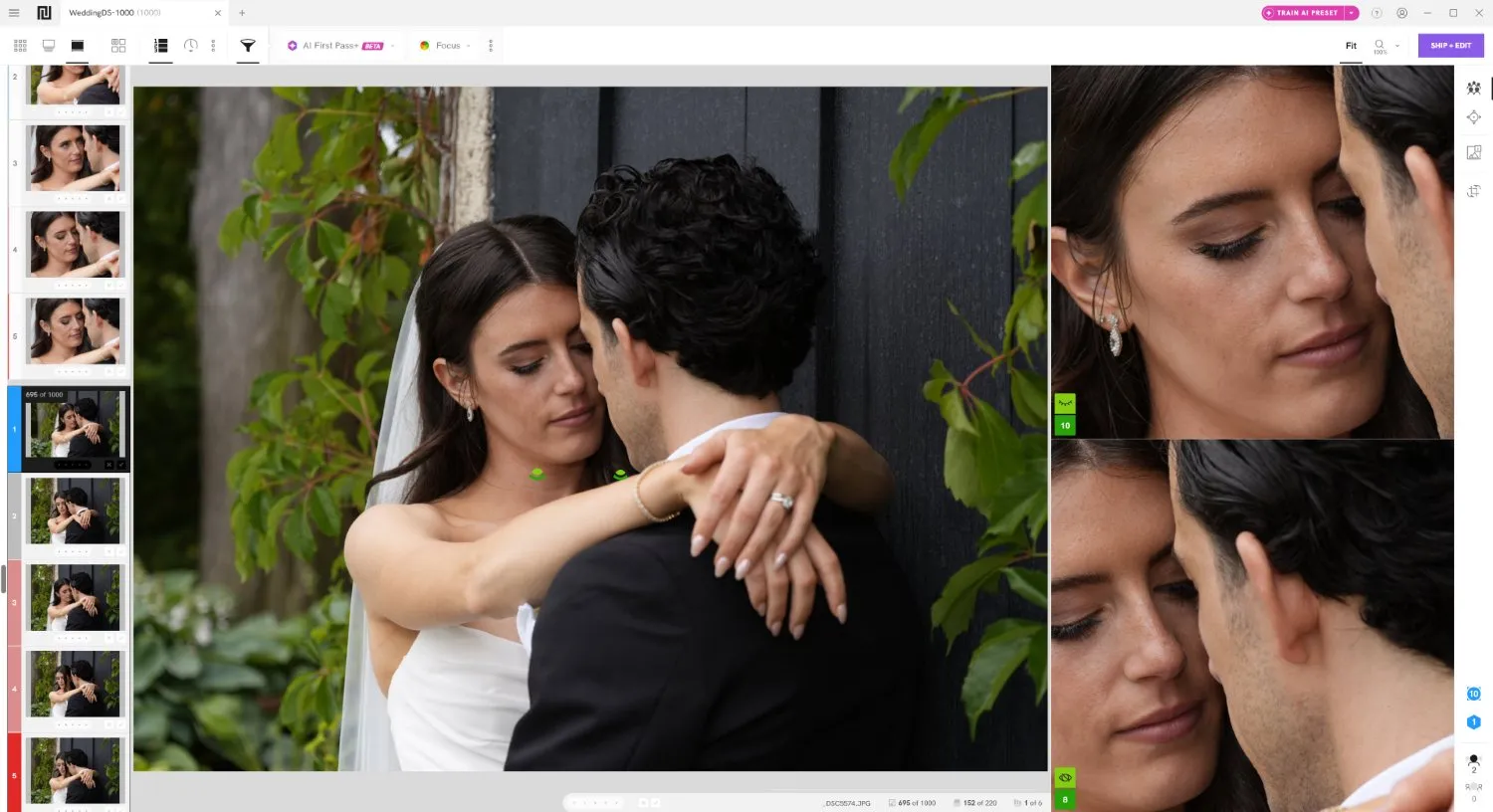
For each imported image, Narrative applied AI-powered evaluations, including highly accurate face focus scores (for each detected subject) and amazingly detailed eye assessments. The program even displayed a unique Scene ranking feature, so I could see at a glance which of my near-duplicate shots might be worthy alternatives to the main pick.
There’s also a Close-Ups panel, which displays magnified crops of every face in the frame simultaneously. Excire has this, too, except Narrative’s design feels more elegant and usable.
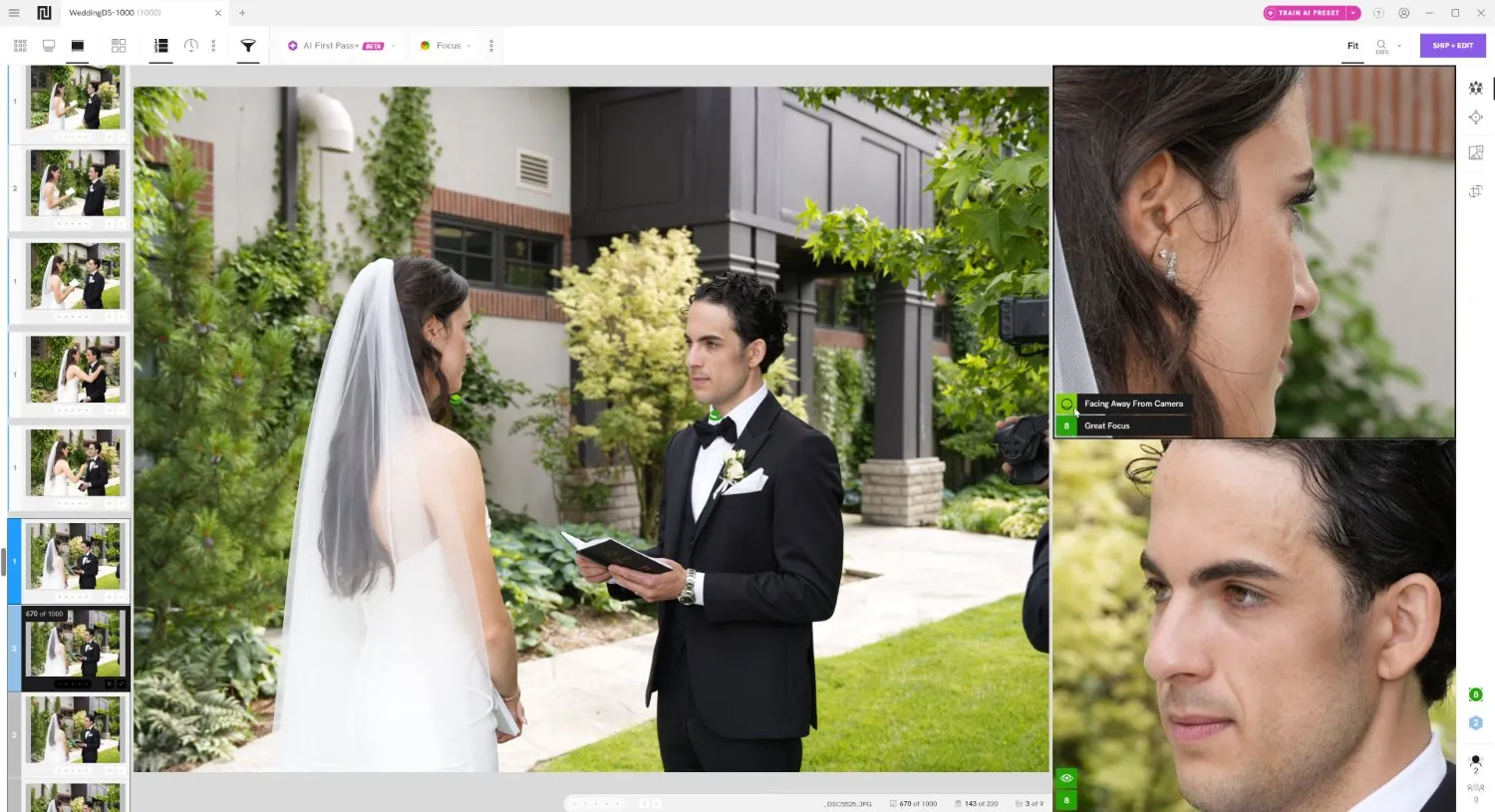
In practice, the workflow is extremely smooth. Keyboard shortcuts allowed me to move quickly between Scenes and flag my favorite images. Once finished culling, I could export directly to Lightroom Classic or Lightroom, and I also appreciated the option to “Pre-Edit” photos with an AI editing preset (though this is only available with certain Narrative subscription plans).

The AI analysis is generally very useful, especially for portrait-heavy work. Based on my comparisons, the face sharpness scores and eye detection tools are the best available, though Narrative’s AI does offer fewer evaluation criteria than some competitors. There’s also relatively little configurability—you can’t adjust the grouping sensitivity, for example, which would’ve been nice, since Narrative’s Scene breakdown was a little stricter than I’d like.
If ease of use is your top concern, Narrative is an excellent pick. And the pricing is much more reasonable than many of the other top culling programs: You can get Narrative’s most basic plan for $10/month, though this doesn’t include some of the most useful smart culling features. My recommendation would be to at least start with the Standard plan, which unlocks the full culling experience and includes basic AI preset editing for $20/month.
3. Best for Manual Culling: Photo Mechanic
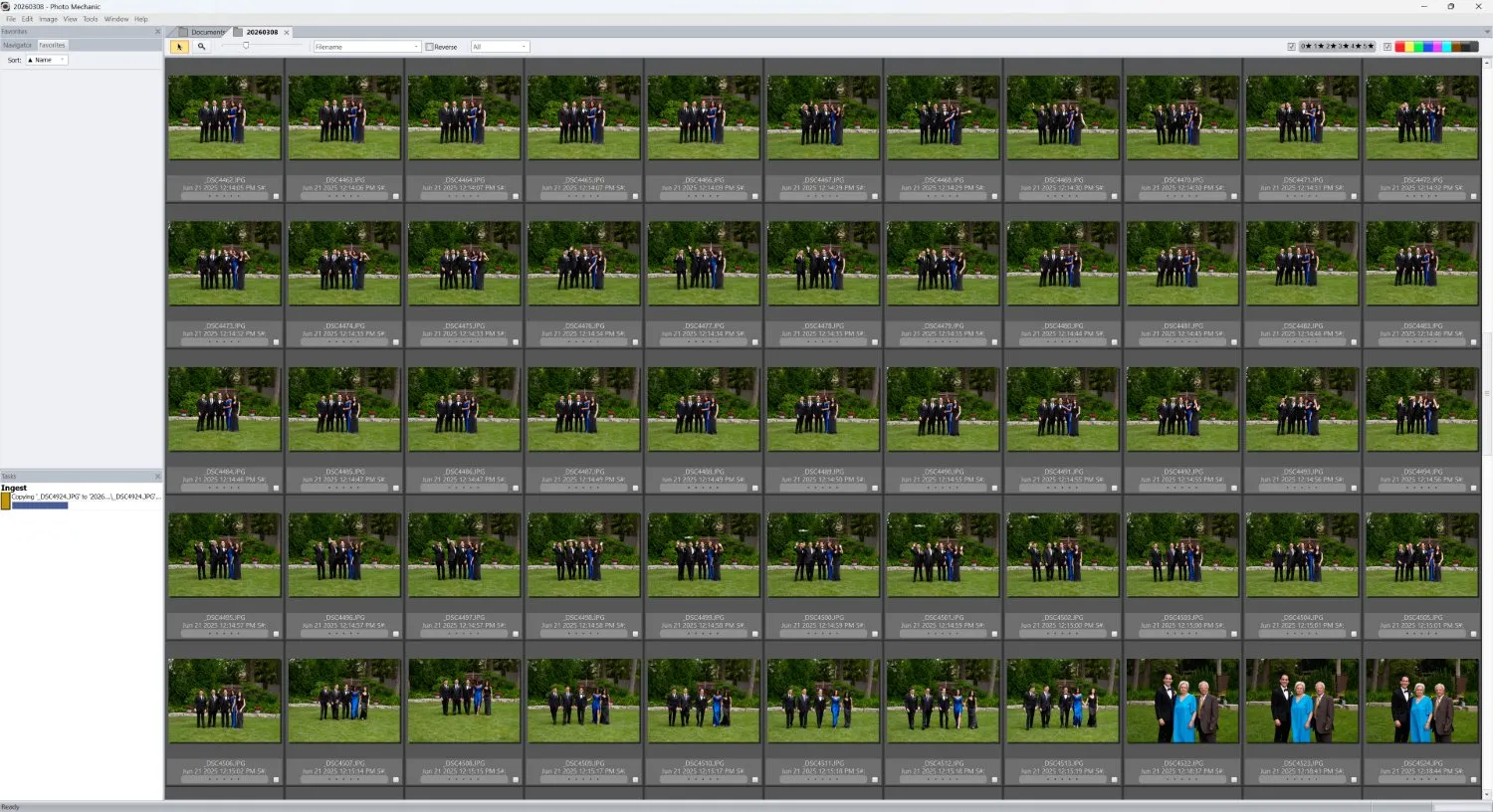
Photo Mechanic has been a staple in high-volume photography workflows for decades, and I can see why: The software is optimized for speed, starting from the moment your computer first detects a memory card all the way to the final image export. But it’s not an AI culling tool; instead, it’s a manual culling program, designed to help you review thousands of images as efficiently as possible. For professionals looking to dramatically cut down on culling time, it may not be enough—but if you want to cull faster while avoiding AI tools in all forms, Photo Mechanic is the best choice.
Testing Photo Mechanic, I was a little surprised by the barebones interface, which looks a bit dated compared to Narrative’s sleek design. But the workflow is fairly easy once you spend some time with it, even if the number of menu options initially feels overwhelming.
Once I familiarized myself with the Photo Mechanic layout and started importing photos, the speed immediately became apparent. The ingestion process was extremely fast, blowing through my 1000-photo test set at a blistering pace. I could actually begin reviewing images while files were still being copied over, which was a huge improvement over my old Lightroom Classic manual culling workflow.
Photo Mechanic offers a grid-style Contact Sheet view for quickly scanning thumbnails, along with a Loupe view for inspecting individual images at full size. Moving through photos in Loupe view was incredibly fast and roughly on par with some of the speediest programs I tested.
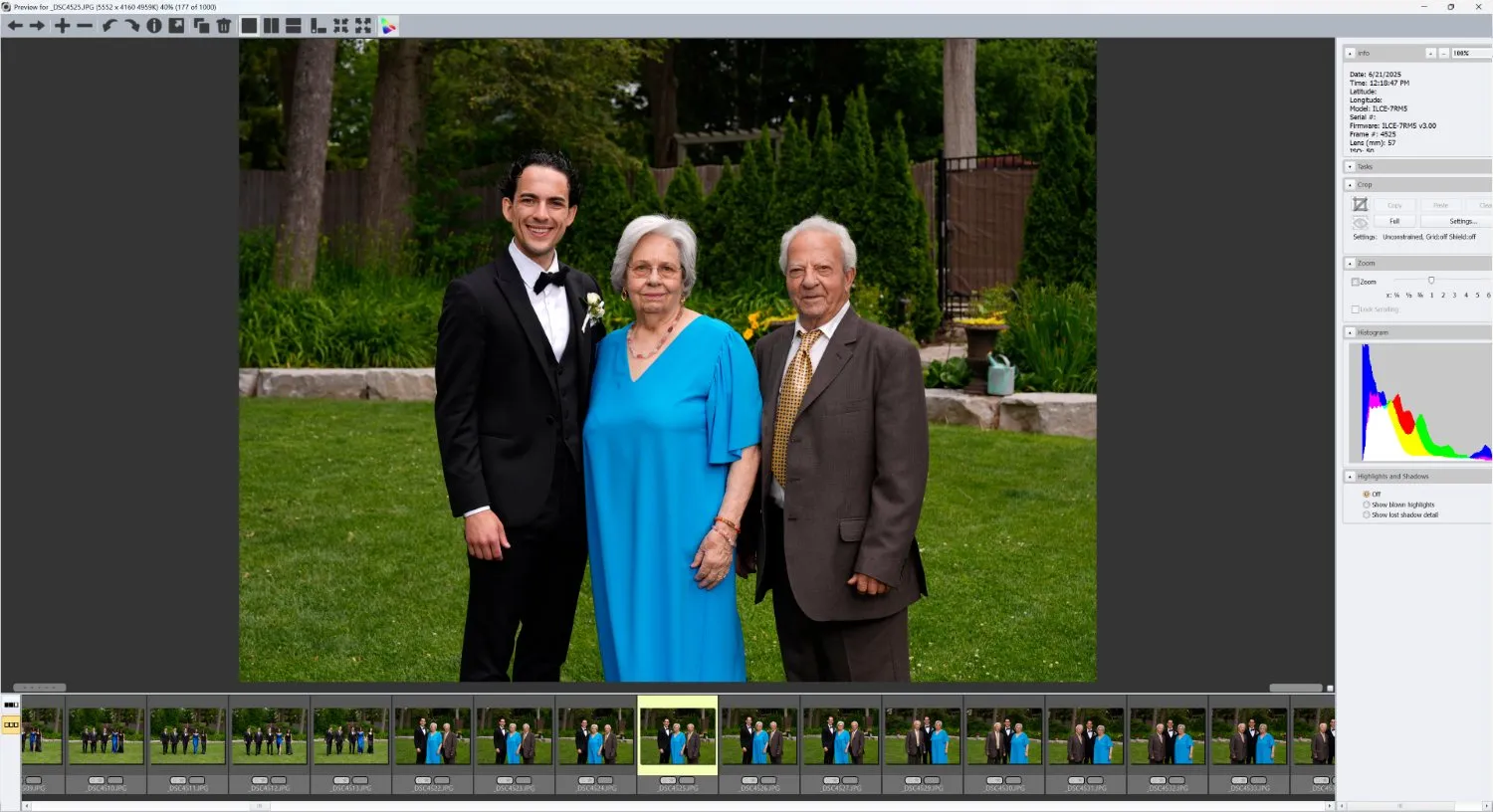
Images rendered sharply and almost instantly, which made it easy to evaluate details such as focus and expression. Plus, Photo Mechanic also includes several comparison views that I used to display images side by side, making it easier to choose the best shots from each sequence.
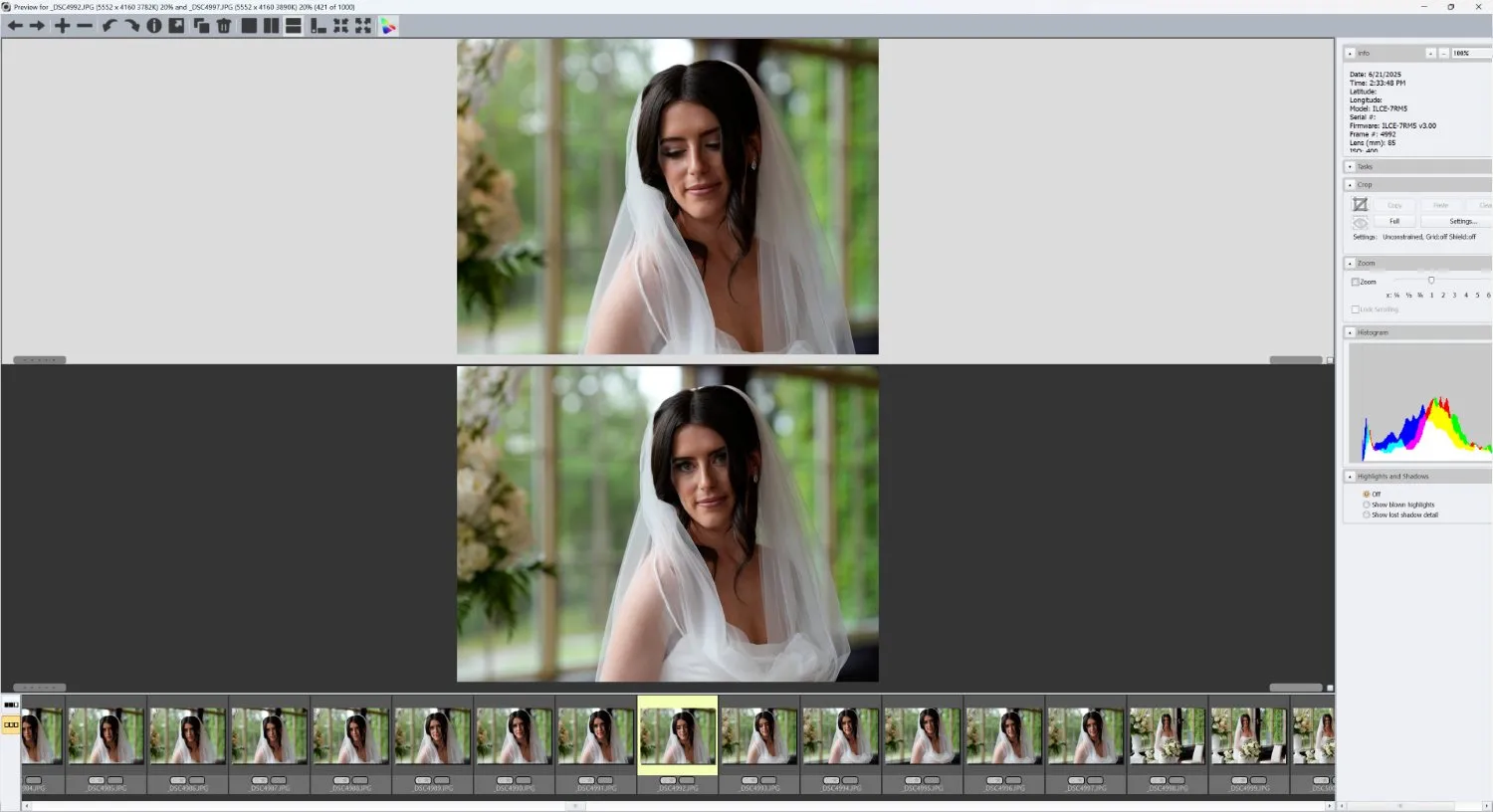
Because the software is so responsive, manual culling in Photo Mechanic does feel significantly faster compared to all-in-one programs like Lightroom Classic, Luminar Neo, and ACDSee, where significant lag can slow down the review process. And the metadata features make it incredibly easy to apply captions, keywords, copyright information, and other metadata either individually or in bulk.
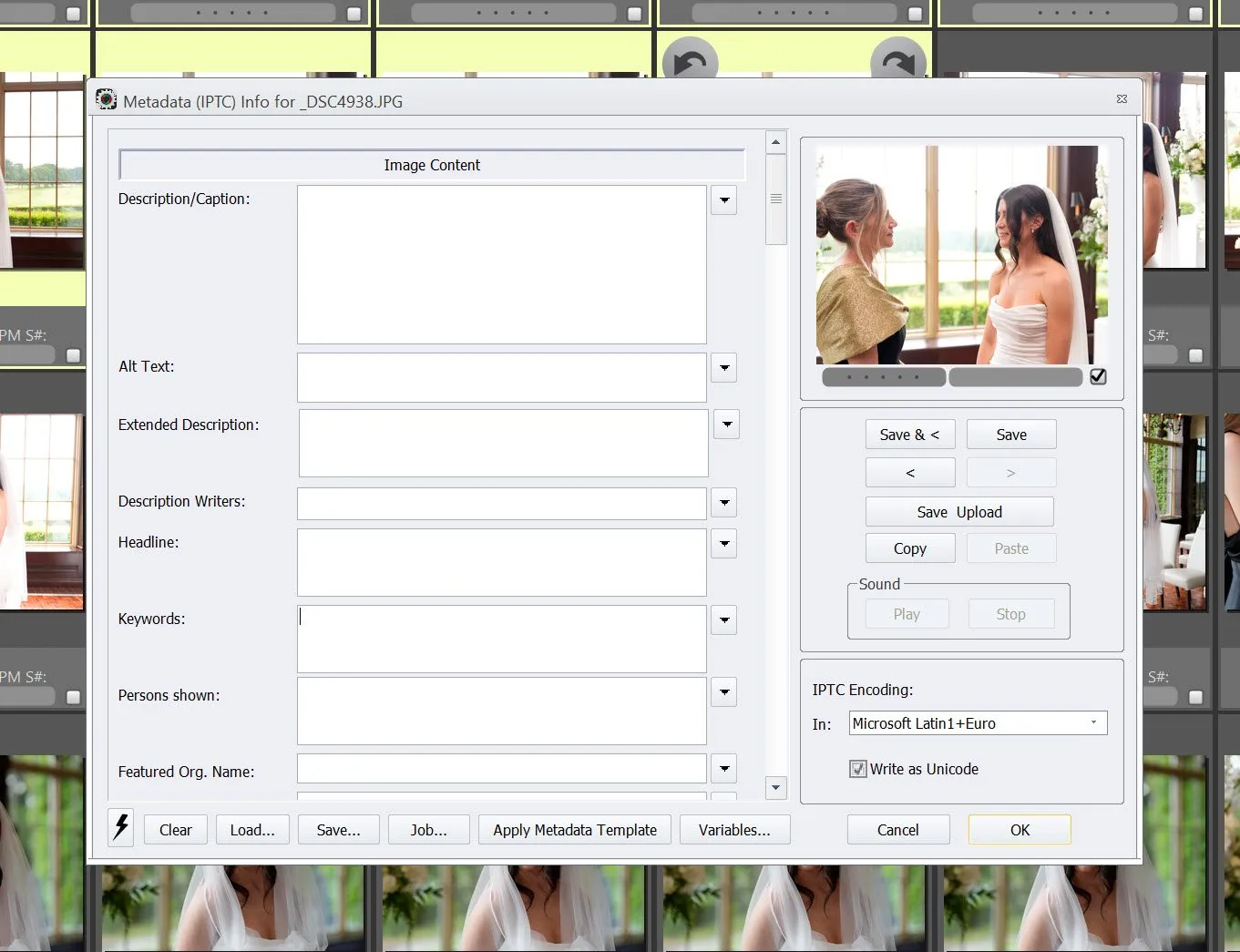
But as I mentioned above, there are no AI features whatsoever: no automatic grouping of similar images, no blur detection, no closed-eye detection, and no intelligent ranking of photos. Everything relies on manual review. And while the speed of the program helps compensate for this, I did find myself missing some of the smarter tools that modern culling software provides, especially intelligent grouping, which I’ve come to rely on over the past year or two.
On the other hand, some photographers prefer this type of fully manual workflow, especially those who don’t trust AI-assisted culling tools. And because Photo Mechanic doesn’t rely on AI analysis, you can start culling images immediately after ingestion, which ensures you hit the ground running. There’s also the price: At $299 for a perpetual license, you’ll pay far less for Photo Mechanic compared to most AI culling tools, at least in the long run (and subscription options are also available at $14.99 per month).
Overall, Photo Mechanic remains the fastest software available for manual culling. If you’re already using it professionally or you prefer a traditional workflow without AI automation, it’s still an excellent solution. However, photographers looking to dramatically speed up the culling process may find that modern AI-assisted tools can save even more time in the long run.
4. Best for AI Culling and AI Editing: Aftershoot
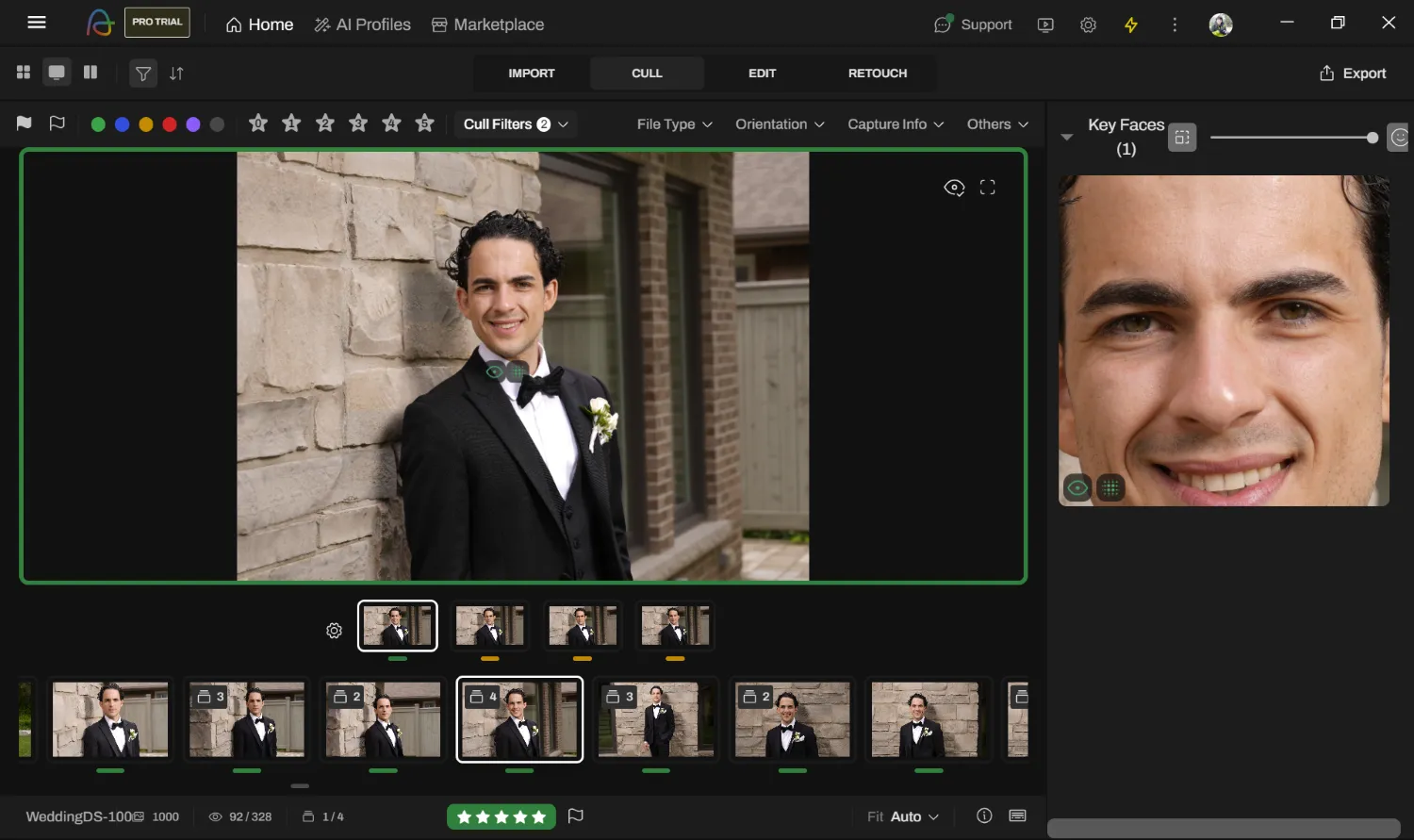
Aftershoot began as a culling tool, but has expanded quite dramatically in the last few years to address other aspects of the photography professional’s workflow. You can now cull your images, apply AI-powered edits, and even perform some retouching without leaving the platform. And for me, that’s Aftershoot’s unique appeal. None of these features on their own stood out compared to the competition, but together they make for the best all-in-one workflow tool on the market today.
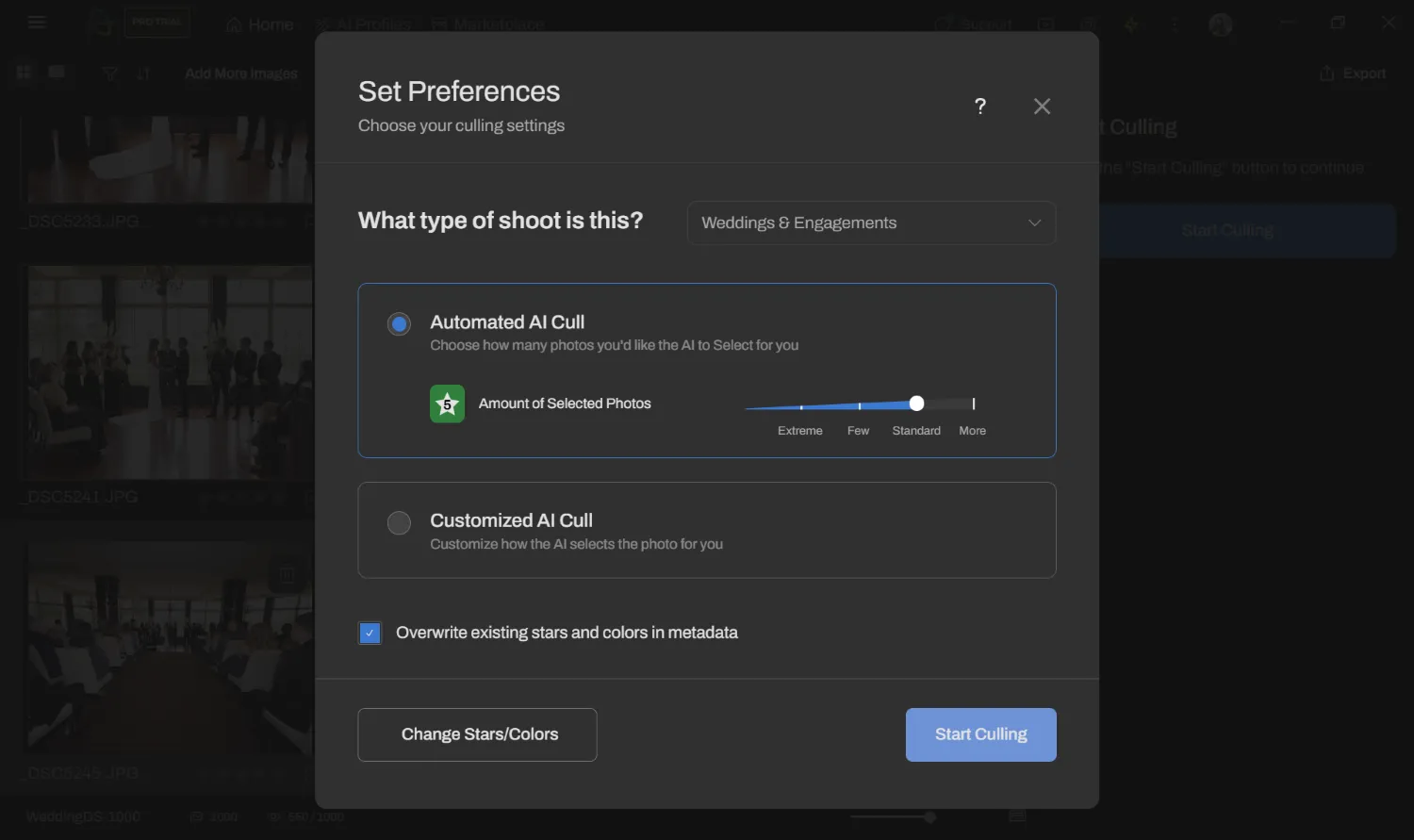
With Aftershoot, importing is extremely fast, and the interface is relatively easy to navigate. When starting a culling session, Aftershoot asks you to select the genre of photography you’re working with to optimize the AI photo-selection process. You can then choose between two approaches:
- Automated AI Cull, where you tell the AI roughly how many images you want to keep and it makes the selections for you.
- Customized AI Cull, where the AI groups similar images, identifies potential issues (like blur or closed eyes), and you make the final selections.
I gave the software the 1000 test images and went with the Customized AI Cull, which ultimately took close to 17 minutes to analyze the set (not exactly fast, but not terribly slow, either). The culling interface was serviceable; on the right side, the software shows magnified face previews, and at the bottom of the screen, two thumbnail grids display both visually similar groups and the broader set of images. (I preferred Narrative’s organization of these groups, though perhaps that’s just personal preference.)
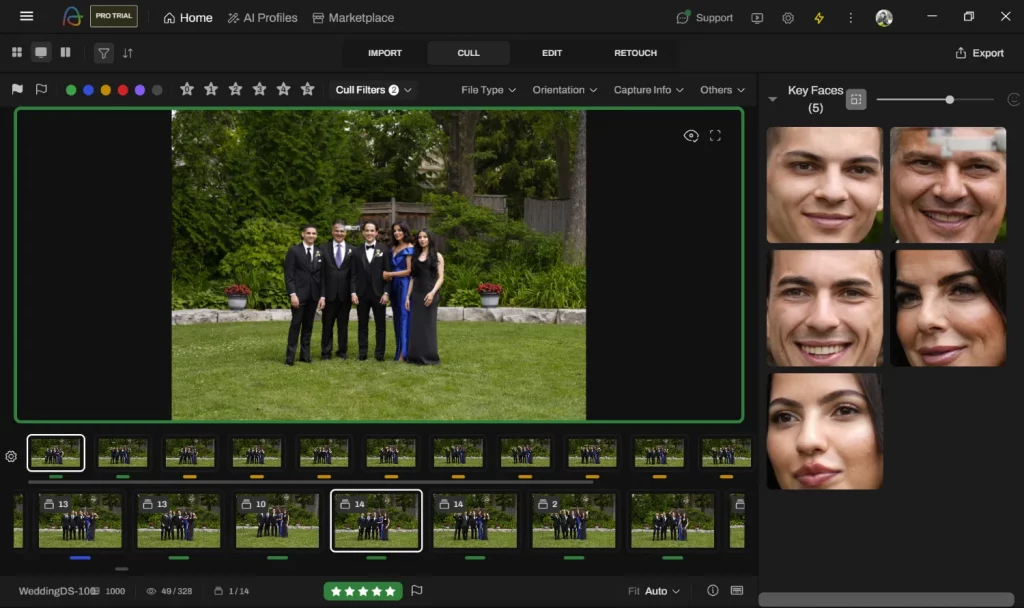
The AI results were somewhat mixed. I found image grouping was often overly sensitive, resulting in many small duplicate groups even when I adjusted my settings to request larger ones. The closed-eye detection could also be aggressive, sometimes flagging images unnecessarily.
By default, Aftershoot uses color labels to categorize images (selected, blurry, eyes closed, etc.). But because the AI automatically applies a “Selected” label to at least one photo from each duplicate group, this occasionally produced odd situations—for example, some images were labeled “Selected” and not “Blurry,” even though they were technically out of focus.
I liked the Highlights feature, which is intended to surface the strongest images from a shoot. This is a hugely useful concept, and one that other culling software should consider emulating; after all, not every visually-similar image set needs to be represented. In practice, though, the results were inconsistent, and the AI seemed to prioritize photos with lots of interaction or movement—even when those images were visually messy or poorly composed.
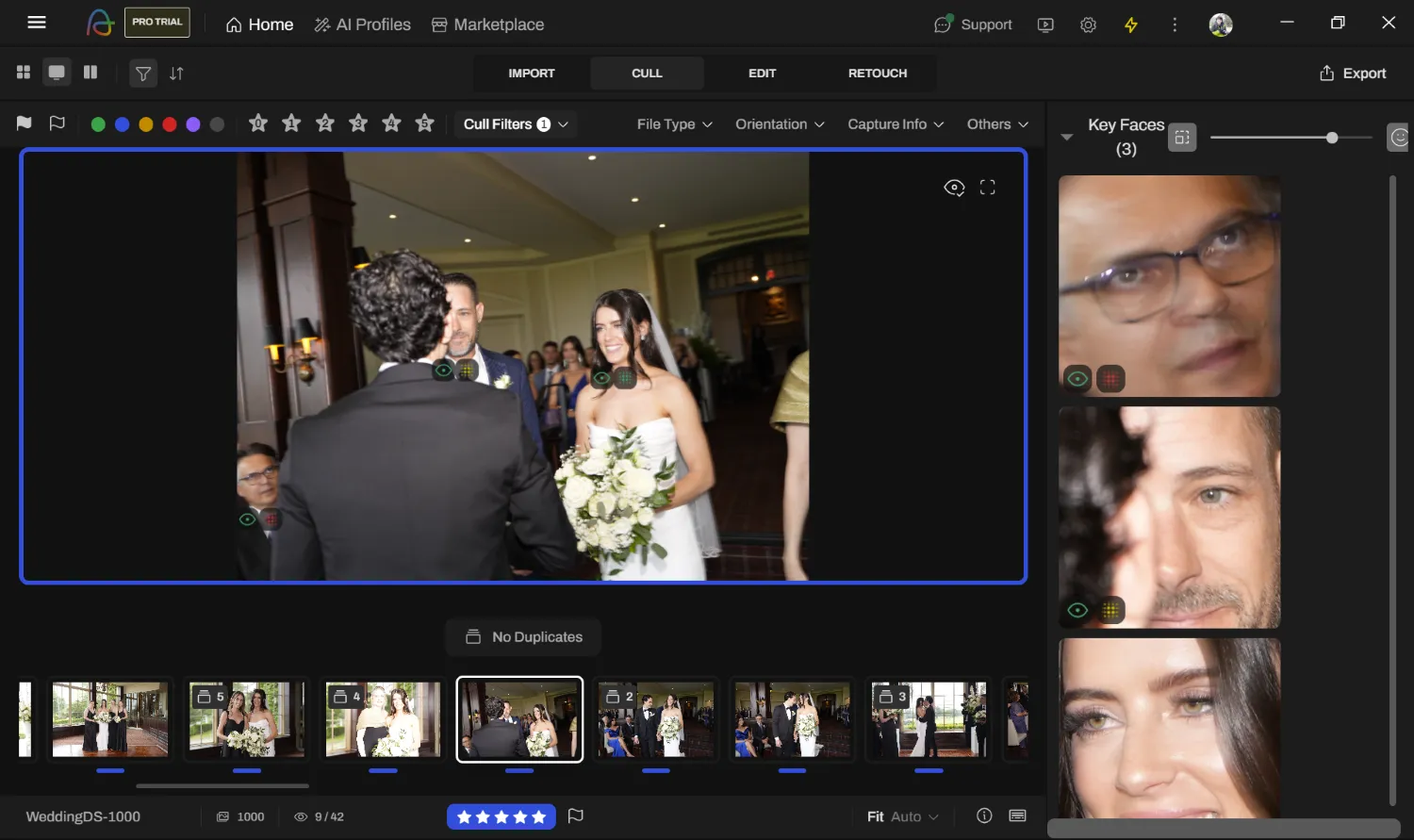
At the end of the day, however, the AI did a decent job choosing the best image within each duplicate group, and once I became comfortable with the interface, reviewing the selections was fairly quick.
Overall, Aftershoot isn’t perfect, but it has genuine time-saving potential, especially if you plan to take advantage of its AI editing features. The AI culling results are reasonably good, the workflow is efficient, and the program runs entirely on your local machine (no internet connection required). You also have a nice array of one-click export options:

The pricing isn’t too high, either, starting at $9.99/month (billed annually) for the Aftershoot Selects plan, which emphasizes culling. Higher-tier plans add AI editing profiles, with the Aftershoot Max plan costing $59.99/month.
5. Best All-in-One Software With Culling: Capture One
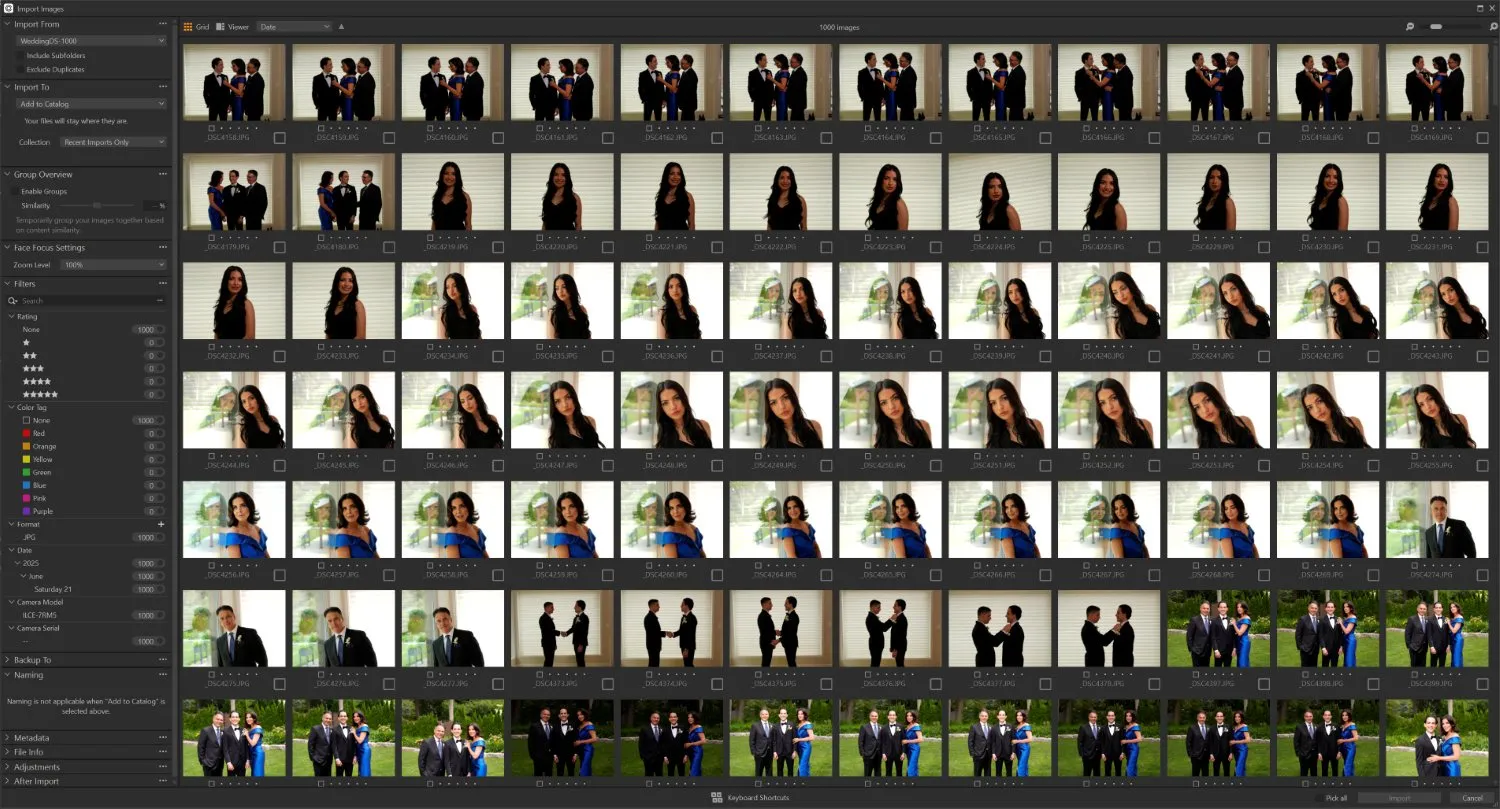
Capture One has a well-deserved reputation as a professional-grade editing and workflow solution, and in my experience testing the software repeatedly over the years, it has consistently delivered excellent results. The editing tools are outstanding, and the overall workflow design makes it easy to manage large photo libraries—but how does Capture One fare when it comes to culling?
Here, Capture One is more of a traditional solution. The software relies primarily on manual culling, where you review images one by one and flag or rate the ones you want to keep. Though there are a few AI-powered tools to help streamline the process, such as Face Focus, which displays magnified views of detected faces so you can quickly evaluate sharpness and expressions.
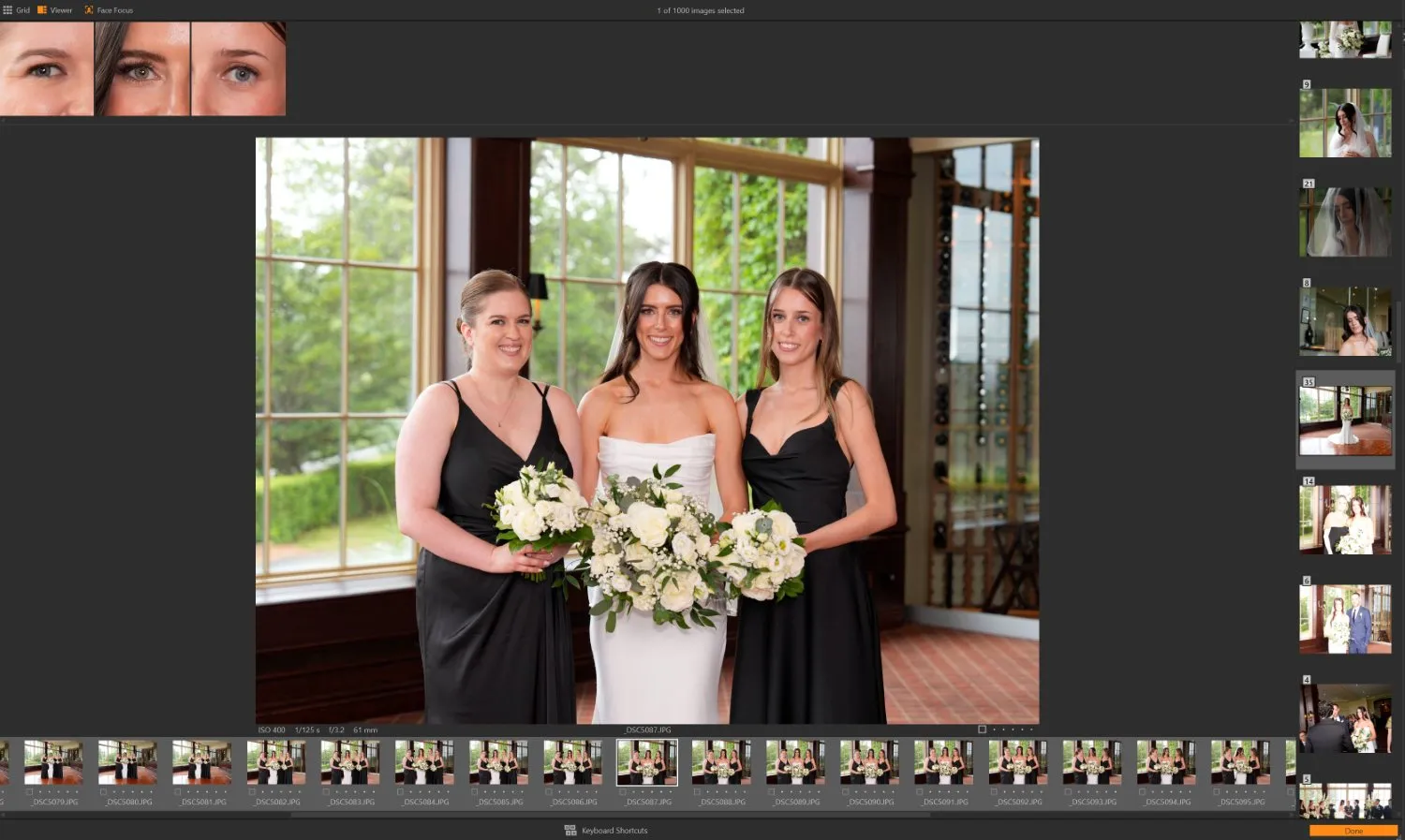
Capture One also includes a Grouping feature that clusters visually similar images together, and I genuinely appreciated the ability to adjust the grouping sensitivity in real time.
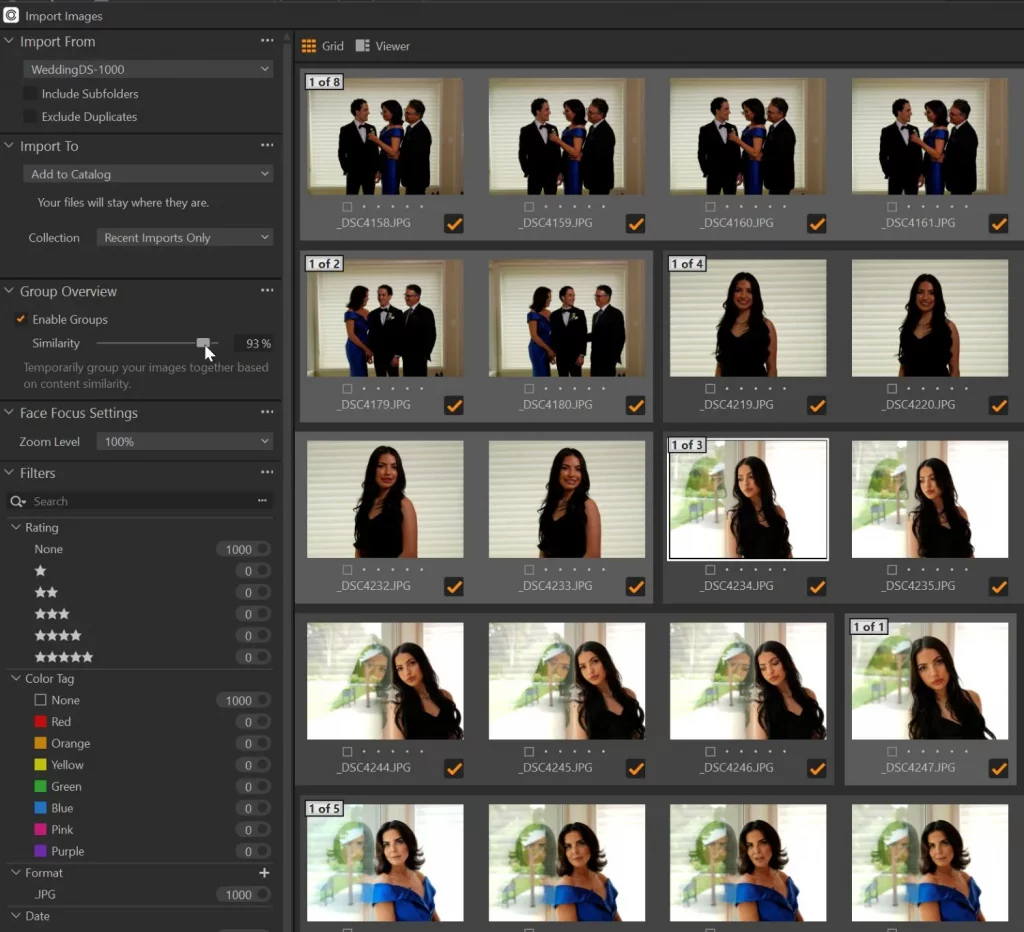
Even with these tools, however, selecting the best shots from a 1000-image wedding photoshoot took a while, and the experience felt more like a fast manual cull than a time-saving AI workflow. Compared to an all-in-one program like Lightroom Classic, Capture One is undoubtedly the better culling solution. But it still falls short of dedicated manual culling software like Photo Mechanic, as well as AI-powered culling tools like Excire, Narrative, and Aftershoot.
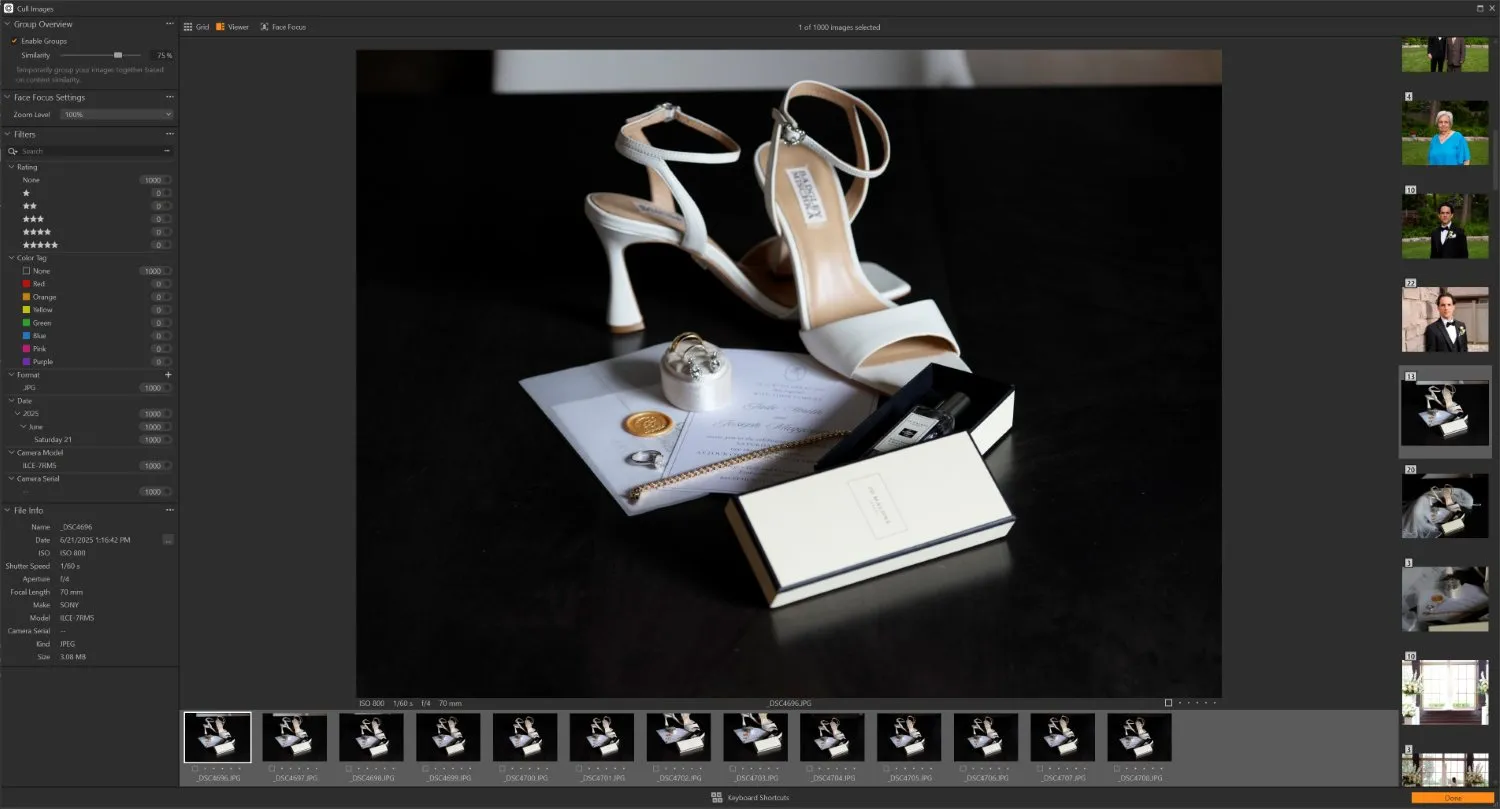
Ultimately, I think Capture One is best viewed as a professional editing and workflow platform that includes solid culling tools, rather than a top-notch culling solution. The editing features alone are worth the $17 per month you’ll pay for a basic subscription, and if you’re drawn to Capture One because of its RAW conversion power, color grading tools, and professional workflow features, it’s an excellent choice. However, if dramatically speeding up the culling process is your primary goal, you may want to pair Capture One with dedicated culling software that integrates well with it, such as Aftershoot or Excire Foto 2025.
6. Best for Cloud-Based Workflows: Imagen AI
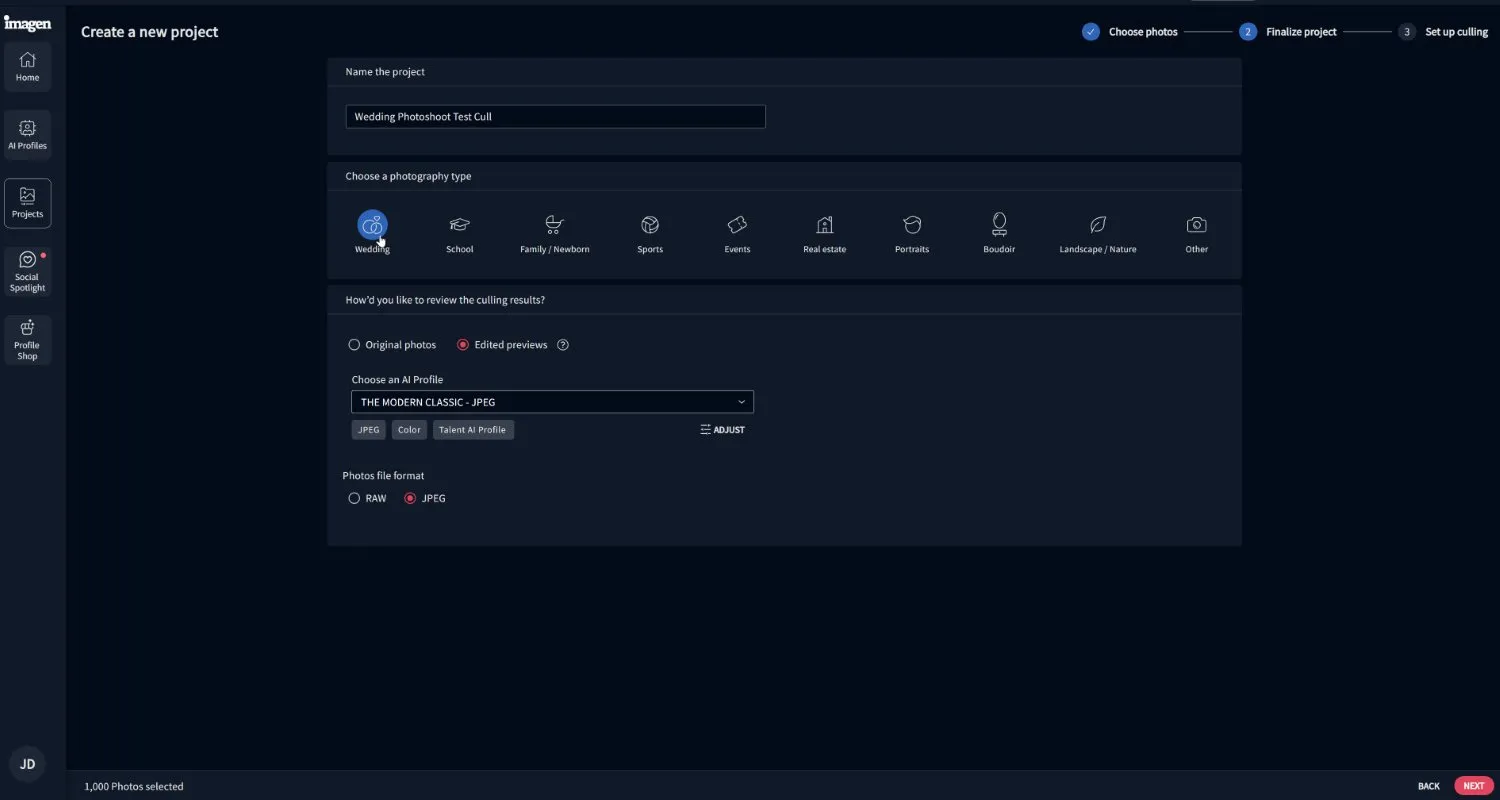
Imagen originally gained popularity as an AI editing platform designed to learn from a photographer’s Lightroom editing history. More recently, the company expanded into culling, and so I was hopeful that Imagen, like Aftershoot, might offer a solid workflow package that combined automated editing and streamlined photo-selection.
Getting started with culling was relatively straightforward: I simply created a new culling project, added the 1000 images I wanted to process, and chose my preferences. I was interested to see several options for customization, including a “Cull to an Exact Number” option, where I could tell the AI exactly how many images I wanted it to pick, as well as a more flexible option called “Keep the Best of Each Group.” In this mode, Imagen groups visually-similar photos and selects the strongest shot from each set.
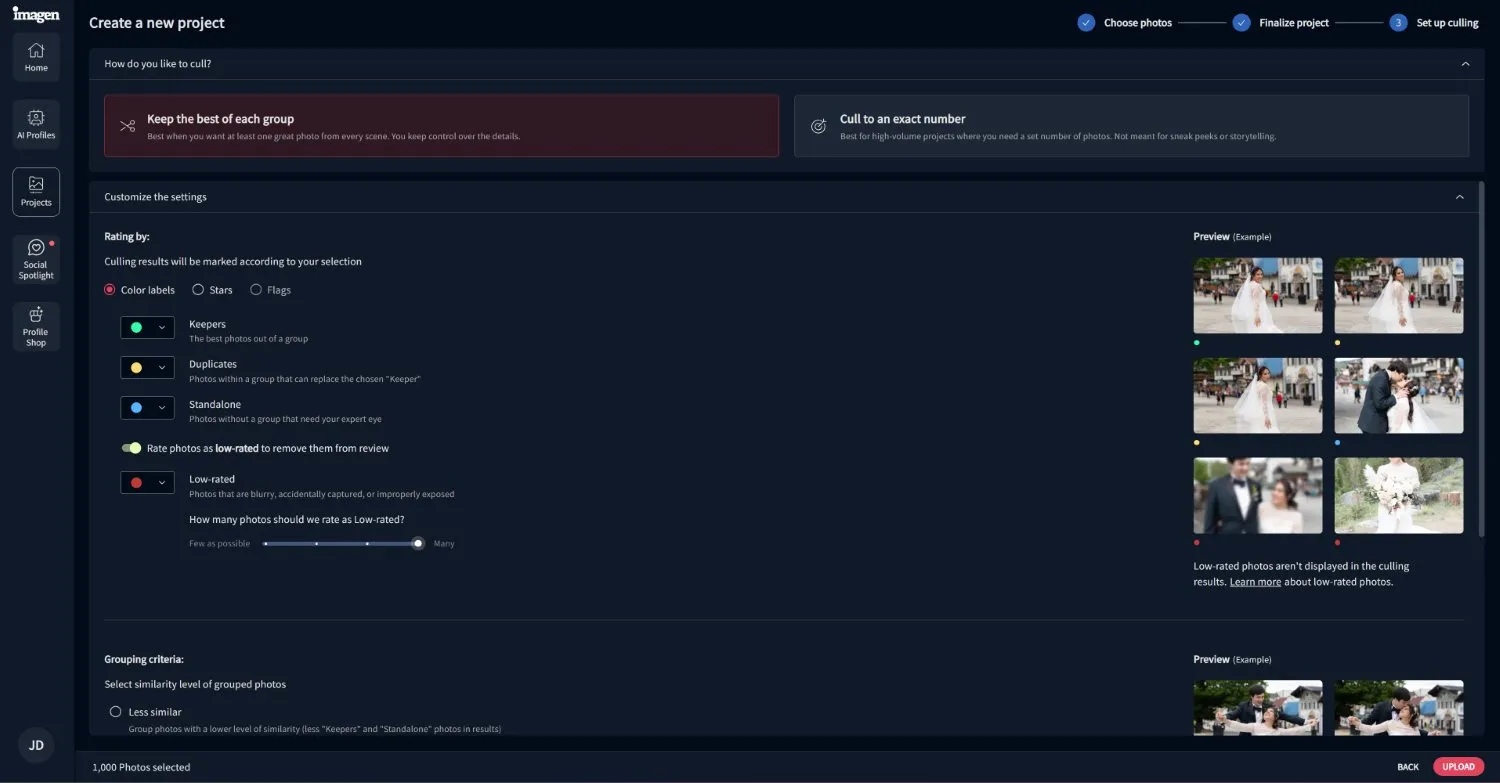
Now, Imagen is entirely cloud-based, which means your images must be uploaded to Imagen’s server before the AI can process them. This often leads to privacy concerns, but I encountered a different issue: it created a huge bottleneck in the workflow. The first time I tried to conduct my 1000-image test, the upload speed slowed to a crawl; it was so slow that after about 45 minutes of waiting, I simply gave up and canceled the cull.
The second time around—from a different location with a better wi-fi signal—things went marginally better: The 1000 photos ultimately completed the upload after about 25 minutes, and then the culling analysis required an additional 10 minutes. This still felt like a long time, especially considering that my 1000 photos were JPEG, not RAW.
Once the analysis was complete, the interface was fairly fast and responsive. The Loupe view is similar to Aftershoot’s layout, with stacked thumbnail grids at the bottom showing sets of similar images.
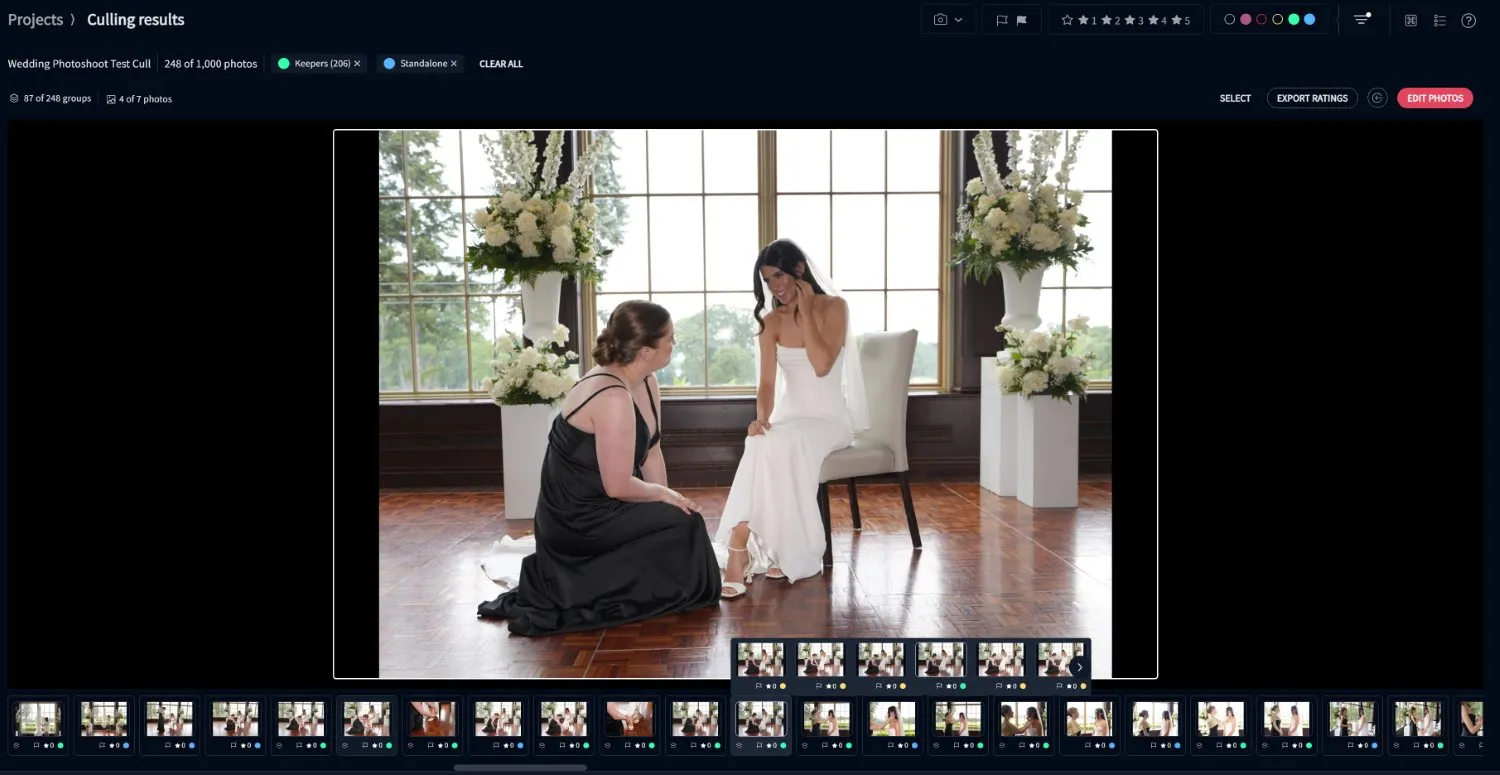
But while the layout is decent, the AI results were frustrating. Even using the recommended intermediate grouping setting, Imagen created a huge number of groups, which made the review process feel unnecessarily fragmented. And the rejection system was strangely conservative; out of the entire 1000-image set, only 17 photos were flagged with a red rejection label, even though I enabled the strictest rejection settings available. The AI selections (marked with a green label) were mixed, and a big drawback here is that Imagen provides very little insight into why certain images were prioritized. There are no numeric scores, rankings, or overlays showing key information such as eye detection or focus quality, and that made the whole thing feel opaque.
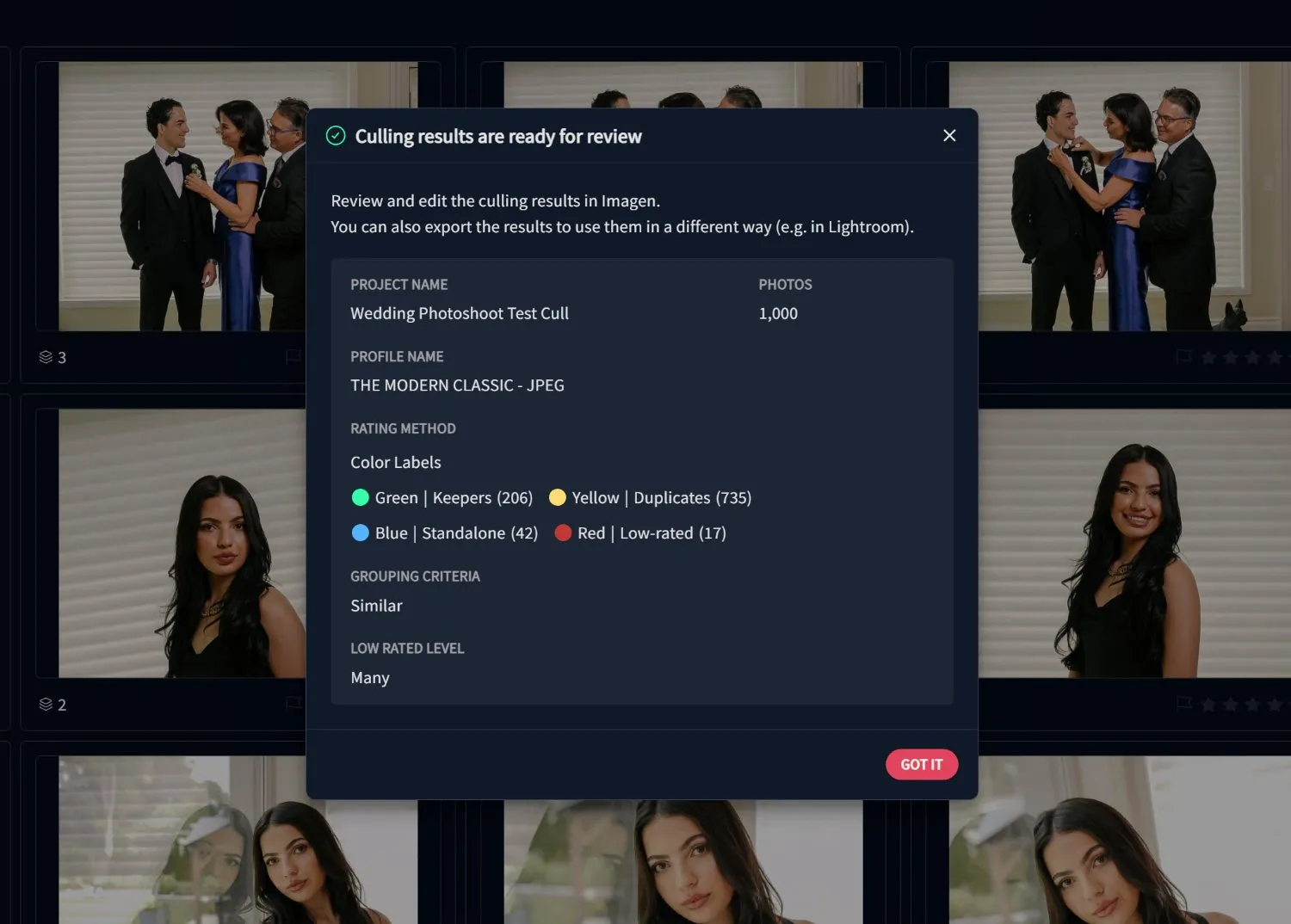
Imagen also advertises the ability to preview AI-edited versions of your images while culling, which sounds appealing in theory; after all, images frequently look very different after editing. Unfortunately, the edited previews were highly compressed, so I found myself switching back to the original images instead.
Overall, Imagen seems best suited for photographers who want a cloud-based, end-to-end AI workflow that handles culling and editing. While the culling features aren’t top-tier, they might come in handy for the right photographer, especially if you like the ability to work from any location with wi-fi. You’ll need to pay a lot for the service, though; in addition to an expensive pay-as-you-go option, annual plans can set you back over $100 per month (and culling costs extra!).
7. Best for Adobe Subscribers: Lightroom Classic
For many years, Adobe Lightroom Classic was the program I relied on for everything: photo organization, culling, and editing. Over time, I moved most of my photo management and culling into Excire Foto 2025, since it’s a much faster photo manager and offers a great AI culling module (discussed above).
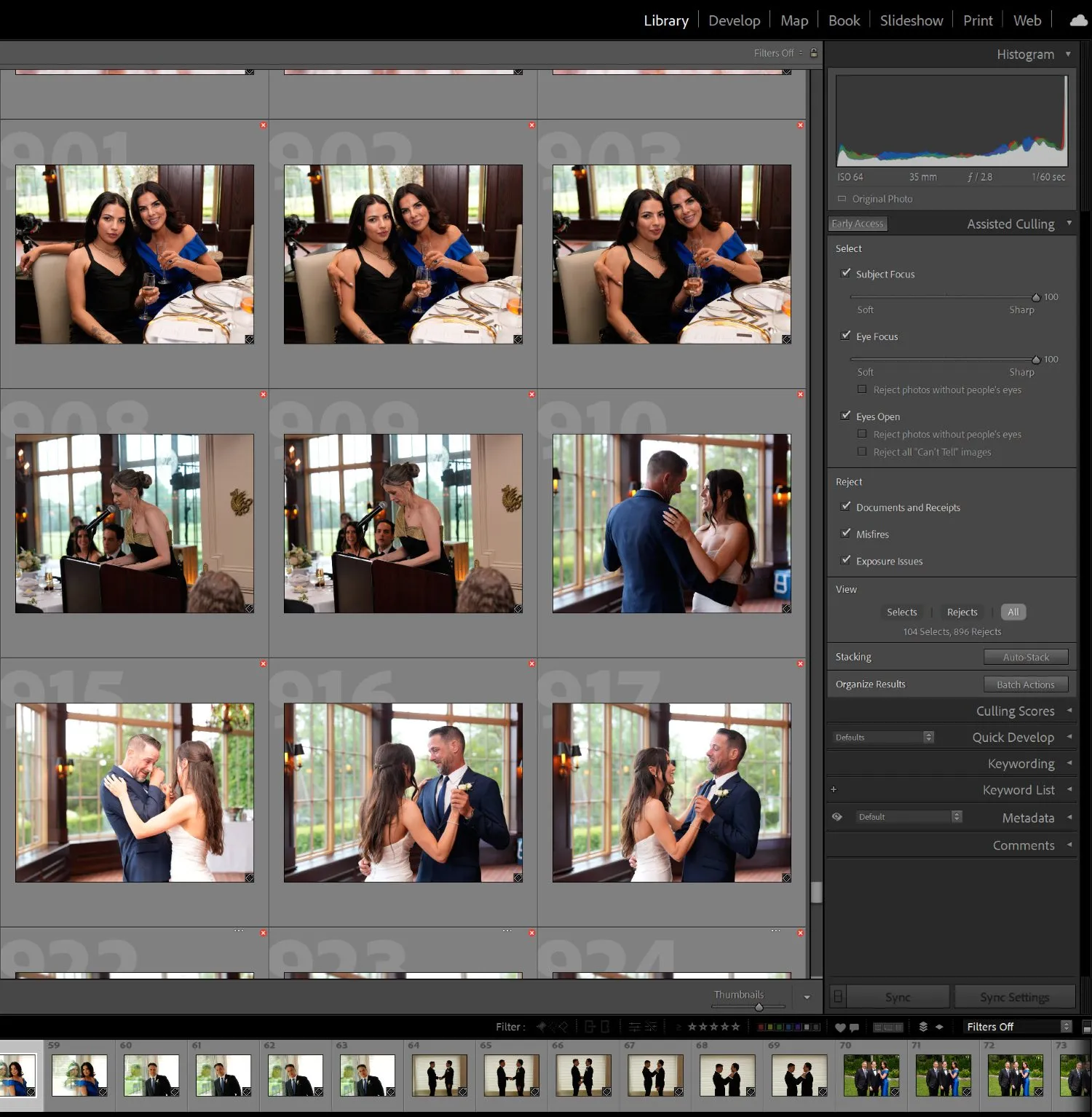
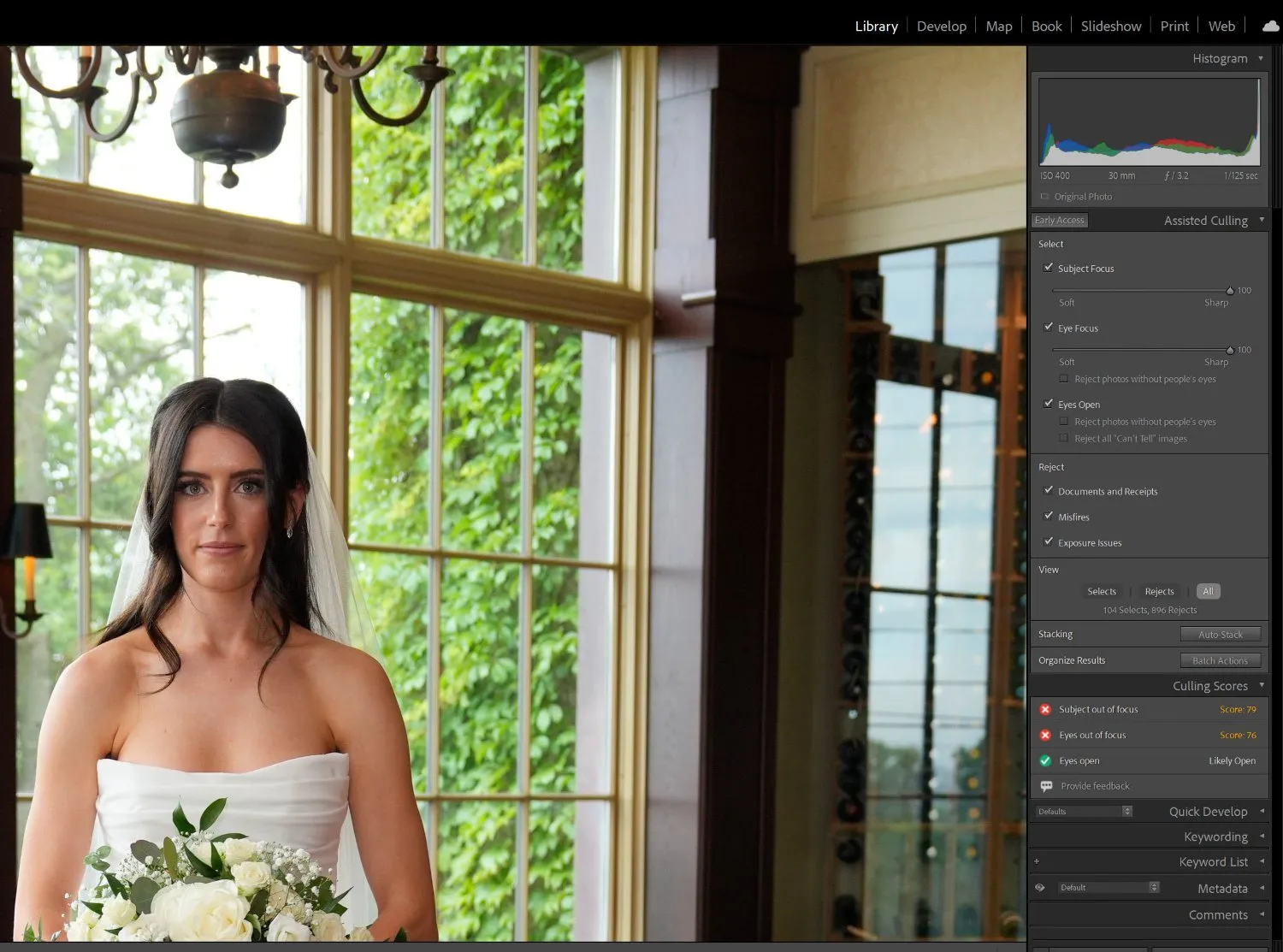
But then, last fall, Adobe introduced AI-assisted culling features. On paper, the idea sounded promising, so I spent quite a bit of time testing the feature when it was first released. Unfortunately, the results didn’t live up to expectations, and I found the AI culling tools to be largely ineffective. Even when using the strictest settings, the software were far too lenient when selecting images, often allowing weaker shots to slip through. At the same time, the AI occasionally misjudged strong photos, flagging perfectly sharp images as having poor subject or eye focus. In many cases, I found myself re-culling entire photoshoots manually—or running them through other software, such as Excire.
Of course, I wanted this to be a fair test, so I figured I’d give the software another try, this time with the 1000-image wedding set. But the results were similarly disappointing.
The analysis process took about 33 minutes, which was slower than nearly every other AI culling program I tested (save for Imagen). And the AI results weren’t good, either; once again, the software rejected tack-sharp images as out-of-focus, while failing to identify images with partially closed eyes (shots that other programs like Narrative or Aftershoot would likely reject).
To Adobe’s credit, the tool is very easy to access if you’re already working in Lightroom: You simply open the AI-Assisted Culling panel in the Library module, and Lightroom analyzes the images currently displayed in the Loupe view. There’s also an option to run assisted culling automatically during the import process, which can certainly streamline workflows, and I appreciate the configurability.
Ultimately, Lightroom Classic remains an excellent all-in-one photography platform, particularly for editing and (to some extent) for photo management, and the monthly subscription cost isn’t exorbitant. But when it comes to culling, it’s hardly an efficient solution. Especially if you’re a high-volume shooter, Lightroom’s built-in tools may leave you wanting something more powerful.
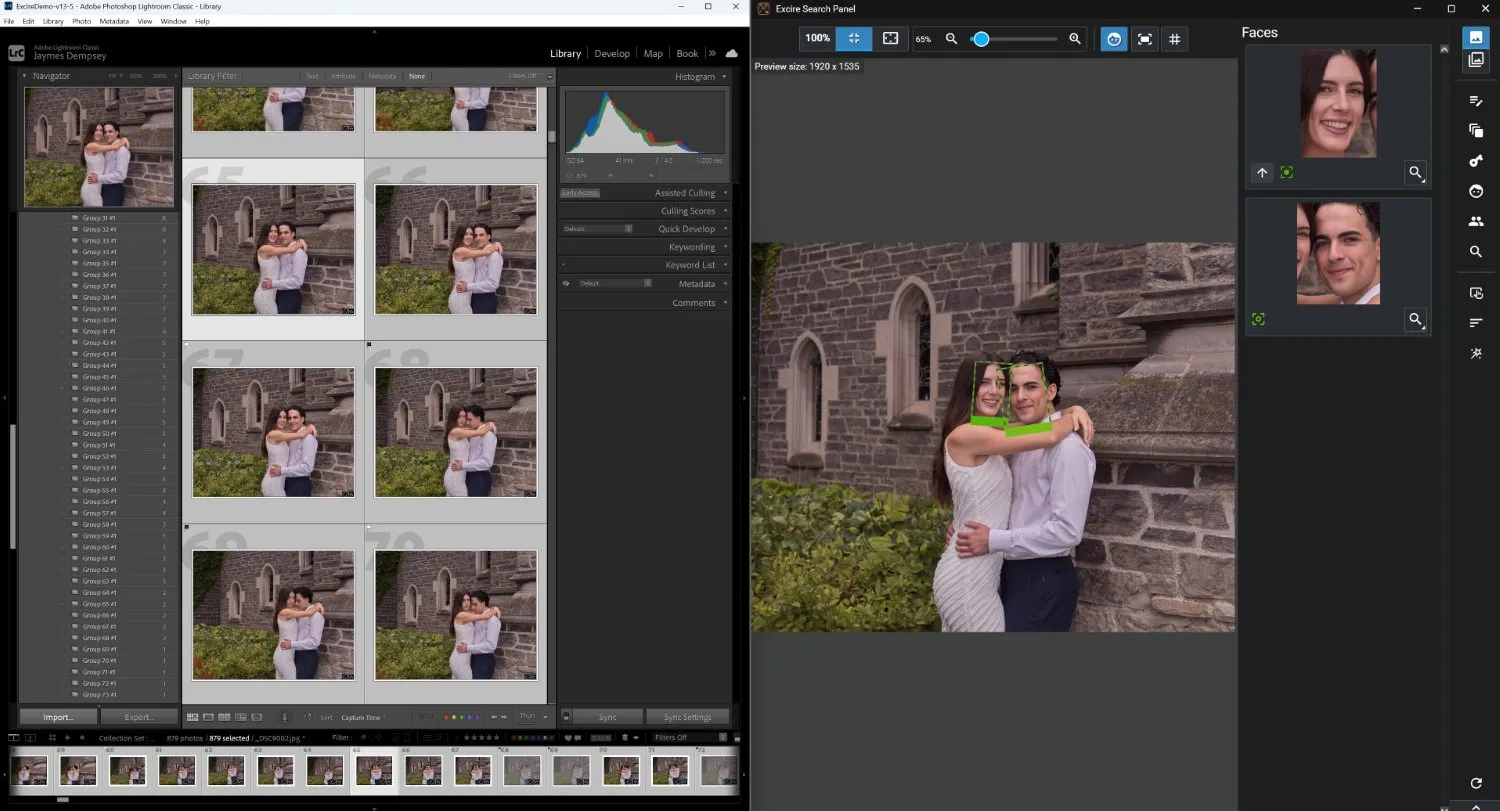
I’ll note, however, that photographers who prefer to stay within the Lightroom ecosystem do have another AI culling option: the Excire Search 2026 plugin. This Lightroom Classic plugin brings Excire’s AI-powered tools directly into the Lightroom interface via the Excire Search panel. And in addition to advanced culling features such as grouping, sorting, and automatic selection, the plugin adds AI keywording, prompt search, and other advanced tools, which can massively enhance Lightroom’s photo-management capabilities. You’ll need to pay for a lifetime license, but at $229, it’s relatively cheap compared to most of the other tools on this list.
Make Your Life Easier With the Best Culling Software!
If you’re searching for a time-saving culling tool, hopefully you now have a clearer sense of which direction makes the most sense for your workflow—whether that means embracing AI-powered culling or sticking with a manual review process.
For photographers who want to automate as much of the selection process as possible, AI-powered tools are a genuinely solid option. When software can effectively group similar images, evaluate sharpness and expressions, and surface the strongest shots, the entire culling process becomes dramatically faster. Here, Excire Foto 2025 stands out as the strongest AI culling option, thanks to its lightning-fast performance and highly configurable AI tools. More than any other tool on the market, Excire lets you decide how much control you want over the AI selection process, making it a flexible solution for many different shooting styles. (I’ll also note that Excire Foto 2025 is easily the best AI culling tool for wildlife and landscape photographers, since the AI options go beyond people-based evaluations.)
If usability is your top priority, Narrative is another excellent choice. Its clean interface and powerful AI tools—such as face magnification and detailed face-focus scoring—make it one of the easiest culling programs to work with. The workflow feels remarkably intuitive, and the AI is consistently useful, especially for photographers who shoot people-focused subjects like weddings, portraits, and events.
Some photographers may also appreciate tools like Aftershoot or Imagen, which combine culling with automated editing. Aftershoot is clearly the stronger culling program out of the two, but Imagen will appeal to photographers who wish to upload photos from any location.
Of course, not every photographer wants AI involved in their workflow. If you prefer full control over every selection, traditional manual culling software can still be incredibly effective. Photo Mechanic is still the gold standard in this category thanks to its legendary speed and highly efficient workflow. And if you prefer an all-in-one environment, Capture One offers strong manual culling capabilities alongside some of the best editing and color grading tools available.
Finally, Lightroom Classic continues to serve as a reliable editing and cataloging platform for many photographers. While its new AI-assisted culling tools still have room for improvement, Lightroom remains an essential part of many professional workflows—and you do have the option to elevate Lightroom’s culling tools with the addition of the Excire Search 2026 plugin.
Ultimately, the best culling software depends on how you prefer to work. Some photographers want maximum automation, others want maximum control, and many will fall somewhere in between. But with the range of tools available today—from streamlined manual culling software to sophisticated AI-assisted workflows—it’s easier than ever to find a solution that saves you time and lets you spend more time on the tasks you enjoy.